Nuke Workflow Tutorials
Last updated Over 1 year ago
Launcher Default Mode
AYON Launcher supports two mode:
open the last version
create a file on startup
Setting Locaiton:
Studio Settings → Studio settings → [select Core] → Tools → Workfiles → Open last workfile on launch
ayon+settings://core/tools/Workfiles/last_workfile_on_startup
Projects Settings → [select project] → [select Core] → Tools → Workfiles → Open last workfile on launch
ayon+settings://core/tools/Workfiles/last_workfile_on_startup?project={project_name}
Workfile Naming
When users open Workfiles tool, they will find the tool set a default workfile name.
This default workfile name can be confiugre in Project Anatomy:
Projects Settings → [select project] → Anatomy Tab → Templates → Work → default
Update the default anatomy preset so that when creating a new project, it gets the expected template
Studio Settings → Anatomy presets Tab → Templates → Work → default
Nuke Color Management with AYON
Nuke Color Settings in Color Management (imageio) addon setting:
Studio Settings → Studio settings → [select Nuke] → Color Management (imageio)
Projects Settings → [select project] → [select Nuke] → Color Management (imageio)
How to Use Templated Workfile Builder
The Templated Workfile Builder initializes Nuke with a Node Graph from a pre-made workfile template. This tool is useful if you want your artists to start working on a task using a template.
To make this work:
Create Workfile Template
When building a workfile, you'll usually start from an empty scene. You can do this by launching Nuke with the skip opening last file option enabled in the launcher.
What is a Placeholder
A placeholder is a key component in workfile templates, used to define products to publish or to load published products. A placeholder node is replaced when the Templated Workfile Builder tool builds a workfile.
There are two main types of placeholders:
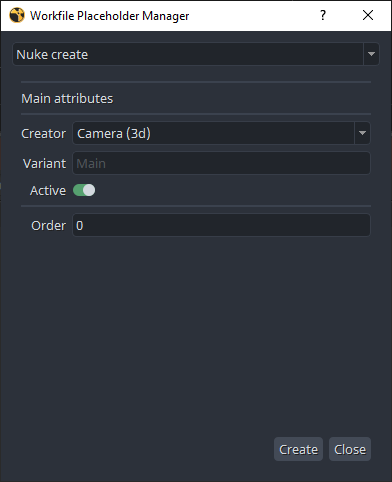
Create: This is replaced by a publish instance. It works the same way as if a user opened the publisher tool and created a product.
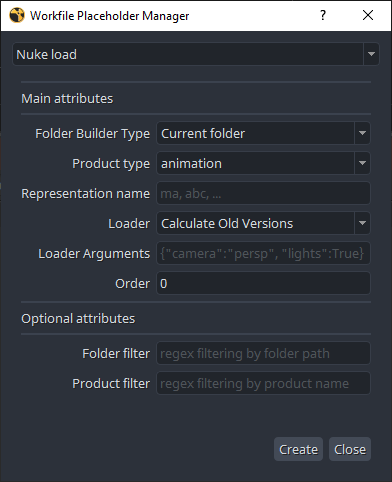
Load: This is used for loading products.
Create
Load
Create a Place Holder
Here's a step by step guide to create place Holders.
From AYON menu, select Template Builder > Create Place Holder.
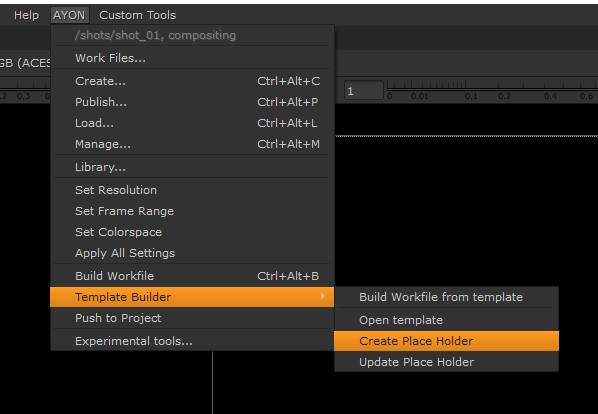
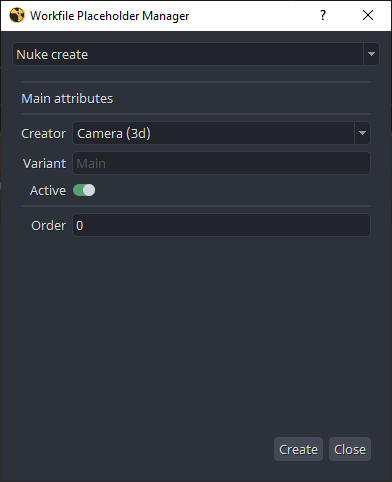
The Placeholder Manager window will appear to configure the placeholder.
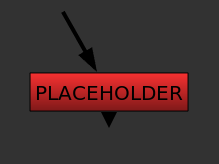
A red node called PLACEHOLDER will be created. It will be replaced when building the workfile template.
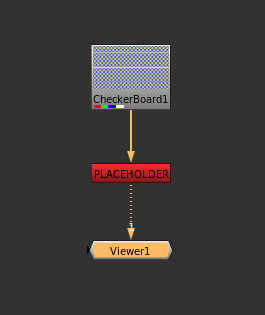
You can connect the placeholder node in a node graph, and the replacement will be done in place.
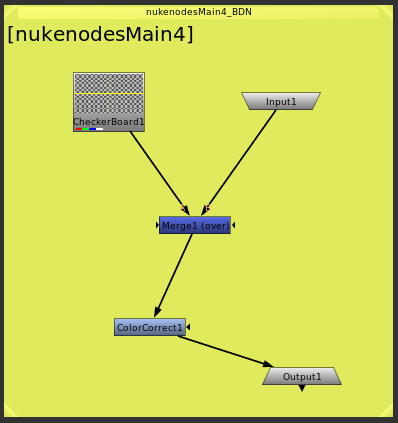
Any published instance that replaces the placeholder must have unique input and output nodes, unless it's imported as a single node.
Update Place Holder
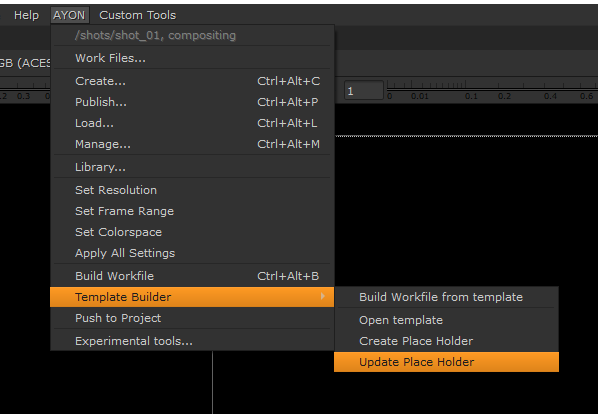
From the AYON menu, select Template Builder > Update Place Holder.
This opens the Placeholder Manager window, allowing you to modify the information in the extra attributes of the selected placeholder.
Build Current Workfile
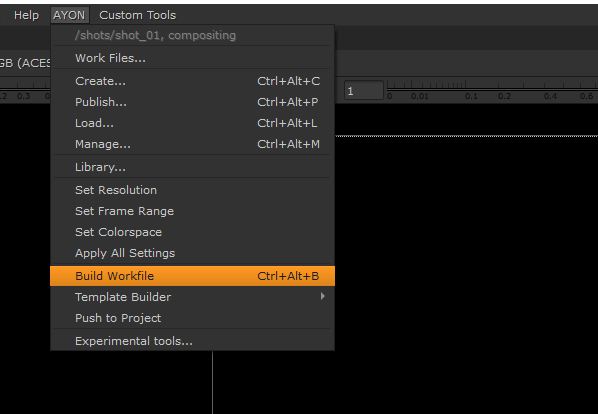
From the AYON menu, select Build Workfile.
This action builds the current workfile, replacing all placeholders with the corresponding Nuke nodes.
Build Workfile from template
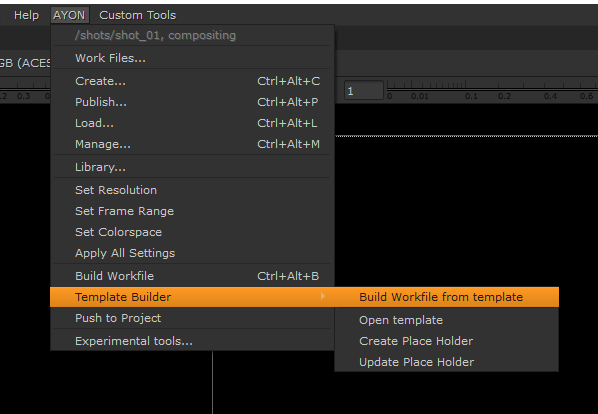
From the AYON menu, select Template Builder > Build Workfile from Template.
This tool imports the template and replaces existing placeholders with the corresponding published objects, which may also contain placeholders. If no published items match the given description, the placeholder will remain in the node graph.
Example Output
Replace the
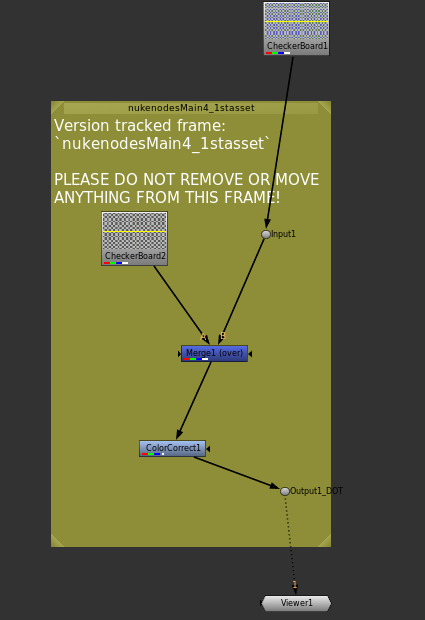
PLACEHOLDERnode in the template with the published instance that matches the information provided in the extra attributes of the placeholder.
If the instance replacing Placeholder A contains another placeholder B that points to multiple published elements, all nodes imported with A, except B, will be duplicated for each element replacing B.
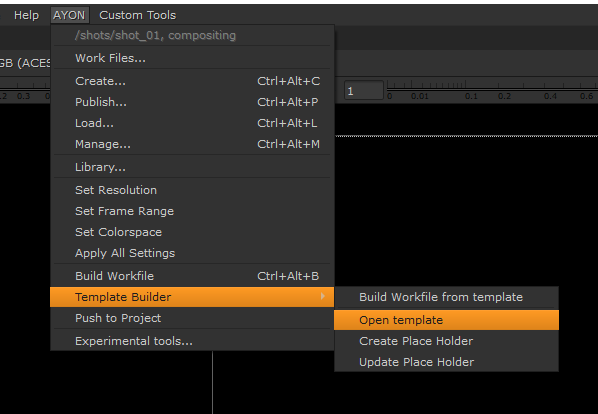
Open Template
From the AYON menu, select Template Builder > Open Template.
Use this to open the workfile template that matches the current AYON context.
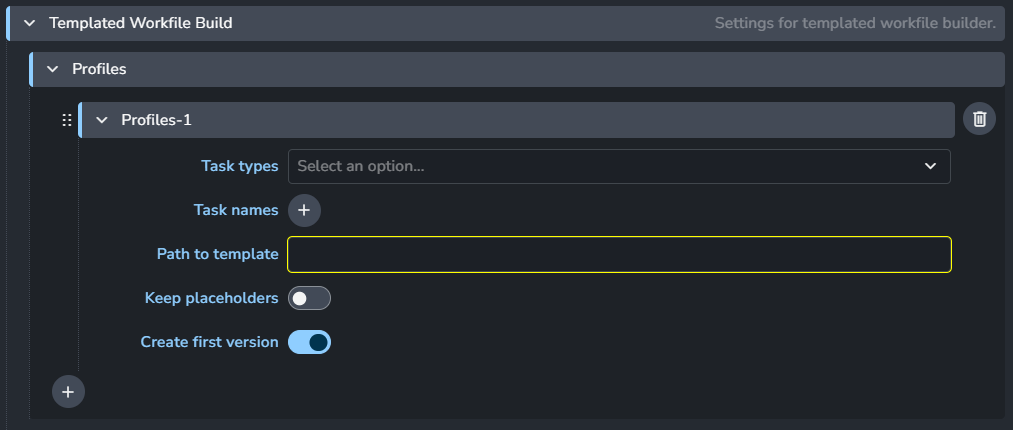
Add a Template to Settings
Once you have a template workfile, you can add it to your settings. This is typically done by adding a profile in the Templated Workfile Builder setting.