Configure Resolve Studio to Work with AYON
Last updated About 1 year ago
Resolve requirements
Resolve uses a separate Python interpreter (it does not come with Python itself). The interpreter needs to have installed PySide2 (or PySide6 if on MacOS) and OpenTimelineIO dependencies for Ayon to work correctly. Bellow you can find instructions on how to install them into an installed Python of your choice.
Resolve 19 - our recommended version range
Python 3.9.x(in complience with Ayon), also been tested withPython 3.10.xResolve 18 - our recommended version range
Python 3.9.x(in complience with Ayon)Resolve 17 - our recommended version
Python 3.6.2
Python and Resolve
Configuring settings for Python home directory
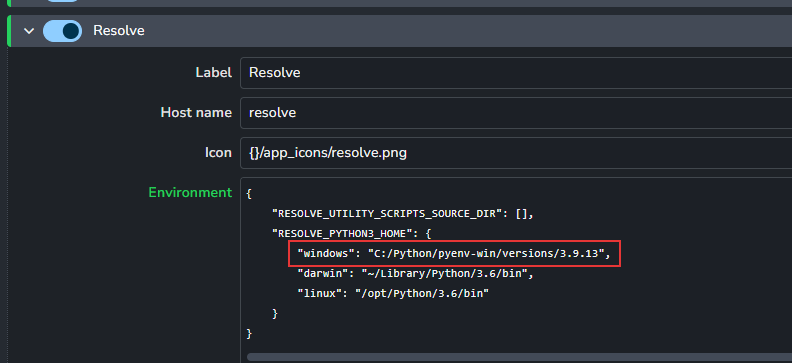
To be able to run python in Resolve you need to set RESOLVE_PYTHON3_HOME environment variable to the directory path of your Python interpreter version.
Open your server Studio settings and go to Resolve under Applications and Tools settings ayon+settings://applications/applications/resolve. Here you can add the path to the Environment section.
Installing Python dependencies
PySide2 or PySide6
AYON is using its own window widget inside Resolve, for that reason PySide2 (or PySide6 if on MacOS) has to be installed into the python.
Windows
cd <a path you had set to RESOLVE_PYTHON3_HOME>
python.exe -m pip install PySide2
Linux
cd <a path you had set to RESOLVE_PYTHON3_HOME>
python3 -m pip install PySide2
Mac OS
cd <a path you had set to RESOLVE_PYTHON3_HOME>
python3 -m pip install PySide6
OpenTimelineIO
AYON is using OpenTimelineIO for editorial publishing. OpenTimelineIO has to be installed into the Resolve Python environment. Tested versions:
Resolve 19 -
OpenColorIO 0.17.0withPython 3.9.xorPython 3.10.xResolve 18 -
OpenColorIO 0.17.0withPython 3.9.xResolve 17 -
OpenColorIO 0.13.0withPython 3.6.2(see special build instruction below)
OpenColorIO 0.13.0
Installation guide for OpenTimelineIO 0.13.0 in Python 3.6 can be found here.
Windows
cd <path to RESOLVE_PYTHON3_HOME>
python.exe -m pip install OpenTimelineIO
Linux
cd <a path you had set to RESOLVE_PYTHON3_HOME>
python3 -m pip install OpenTimelineIO
Mac OS
cd <a path you had set to RESOLVE_PYTHON3_HOME>
python3 -m pip install OpenTimelineIO
Debugging if Python is not working in Resolve
Set Resolve's Fusion settings for Python 3 interpreter
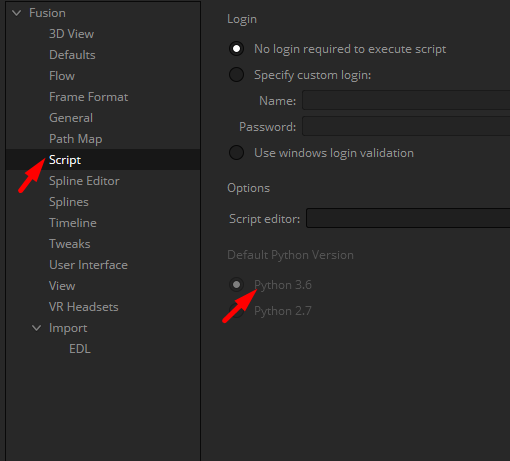
In case Resolve is not showing Ayon menu, please have a look into Resolve's console and click to Py3 tab. If it is not working then Python is not correctly connected to Resolve. One of the reasons might be that Fusion is not set to use Python 3.6 interpreter.
As it is shown in below picture you have to go to Fusion Tab and then in Fusion menu find Fusion Settings. Go to Fusion/Script and find Default Python Version and switch to Python 3.6
Custom DaVinci Resolve Python 3.x interpreter
In the Studio Settings / Applications / Resolve section, you can change the environment variables to configure a custom python interpreter.
e.g. An example of a possible configuration, or use hard-coded and write it in the environment configuration.
{
    "RESOLVE_UTILITY_SCRIPTS_SOURCE_DIR": [],
    "RESOLVE_PYTHON3_HOME": {
        "windows": "{CUSTOM_RESOLVE_PYTHON_HOME}",
        "darwin": "{CUSTOM_RESOLVE_PYTHON_HOME}",
        "linux": "{CUSTOM_RESOLVE_PYTHON_HOME}"
    }
}
Set your python 3.x interpreter directory to the environment variable CUSTOM_RESOLVE_PYTHON_HOME.
Next, you'll need to use your custom python interpreter to install some of the necessary packages
python -m pip install PySide2python -m pip install OpenTimelineIO
Enable Scripting
In Resolve go to DaVinci Resolve > Preferences > System > General. Set External scripting using to Local.