Configure Deadline Addon
Last updated About 1 month ago
Introduction
AYON supports integration with the AWS Thinkbox Deadline render farm manager through the AYON Deadline addon. The addon relies on the Deadline web service to submit jobs.
The integration consists of two parts:
The Deadline custom plugins.
A
GlobalJobPreLoadDeadline Script (triggered for each Deadline job submitted via the Deadline addon).
The GlobalJobPreLoad script manages the population of submitted jobs with the correct environment variables, using settings from the AYON Deadline Plug-in.
Additionally, the addon streamlines Unreal Deadline submissions by utilizing the version control addon. See Unreal Engine 5 Plug-in.
Preparation
You'll need to set up a few things in both AYON and Deadline itself.
Deploy AYON Launcher: Install the AYON launcher on all nodes of the Deadline farm. See Getting Started with AYON Pipeline for guidance.
Set Up Deadline Web API Service: Follow the instructions here to set up the Deadline Web API service.
Install Custom Plugin and Scripts: Copy the contents of
ayon_deadline/repository(repository) shipped within addon topath/to/your/deadline/repository. Refer to Deadline Custom Plug-ins for more details.Create a New AYON Bundle: Include the Deadline Addon version in your new AYON Bundle.
Configure Deadline Addon Settings: See Addon Settings for configuration details.
Select Deadline Server: By default, it uses the
defaultserver defined in the studio settings. See System Deadline Webservice Info. However, you can choose which Deadline server should be used for your project atayon+settings://deadline/deadline_server?project=YOUR_PROJECT.Get AYON_API_KEY: Store this key as you'll need it for the Deadline AYON Plug-in configuration.
You could check deadline guide on forums for more detailed steps and additional tips.
Optimizing Deadline Farm Render Nodes in AYON
If you have dedicated farm machines, set the environment variable AYON_SITE_ID on them to a unified value. This optimizes performance and limits request overhead on the AYON server, especially when a large number of worker nodes start up simultaneously.
For further details, Check Site ID.
Authentication
Deadline supports username and passwords authentication to protect webservice from unwanted requests. (In Deadline Tools>Configure Repository Options>Web Service Settings>Require Authentication)
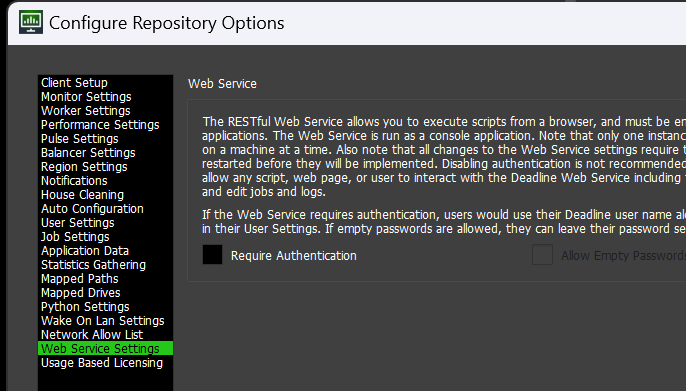
For this, admins need to enable authentication in the addon settings. See System Deadline Webservice Info.
Deadline Custom Plug-ins
The AYON Deadline addon requires a few custom plugins to be installed.
The Deadline custom plugins and the GlobalJobPreLoad script come with the AYON Deadline addon. In the Deadline addon, you'll find a repository overlay that you can copy into the Deadline repository to make it work.
To get the custom plugins, you can either download the addon .zip package from ayon-deadline/releases - GitHub or find the downloaded one using the launcher on your machine. By default, the addon downloads to the path saved in the AYON_ADDONS_DIR environment variable. The files should be in the deadline_x.x.x/client/ayon_deadline/repository directory.
Custom Plugins:
Husk Standalone Plug-in This one is not shipped with deadline addon. please refer to Husk Standalone section below for more info.
AYON Plug-in
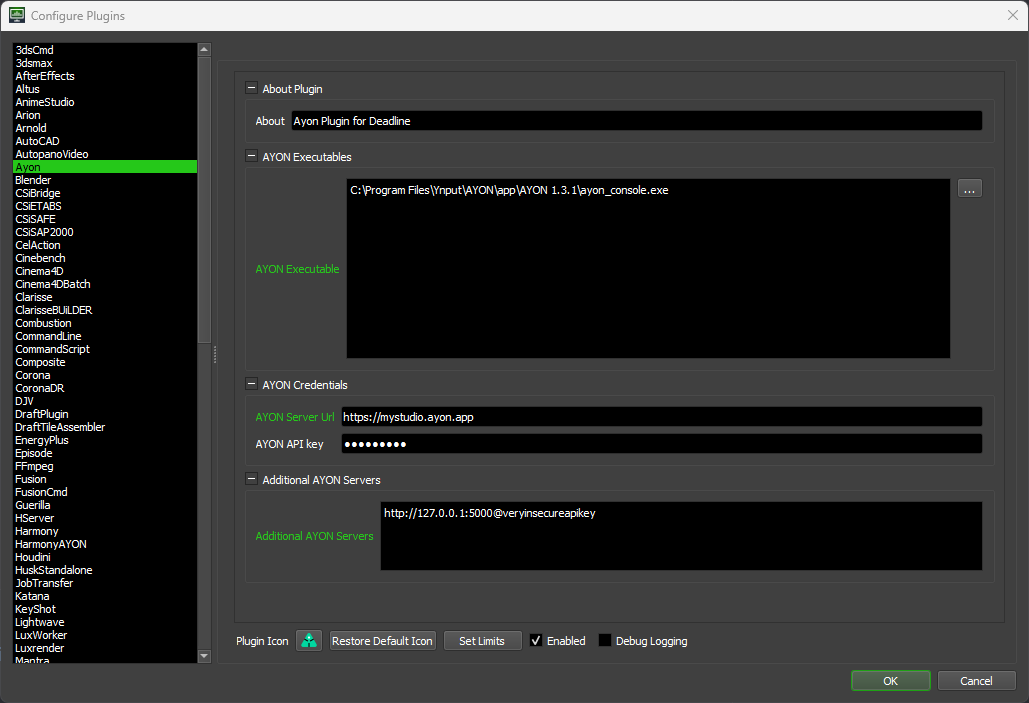
The AYON Deadline Plug-in must be configured to point to a valid AYON executable location. The executable need to be installed to destinations accessible by DL process. Check permissions (must be executable and accessible by Deadline process)
Enable
Tools > Super User Modein Deadline MonitorGo to
Tools > Configure Plugins..., findAYONin the list on the left side, find location of AYON executable. It is recommended to use theayon_consoleexecutable as it provides a bit more logging.In case of multi OS farms, provide multiple locations, each Deadline Worker goes through the list and tries to find the first accessible location for itself.
provide your Ayon server address and API key for service account generated in step 6 of Preparation
provide additional servers if needed, they should follow this format:
{server url}@{token}, e.g.,http://11.2.3.47@myapikey1.
AYON Server URLs can point to a local server, such as http://127.0.0.1:5000, or an online server, like our Ynput Cloud instances, which have links such as https://mystudio.ayon.app/.
Additional AYON servers could include a secondary production server used in your studio or a development server to keep development work isolated from production. For more info check Add AYON Server to Farm Job.
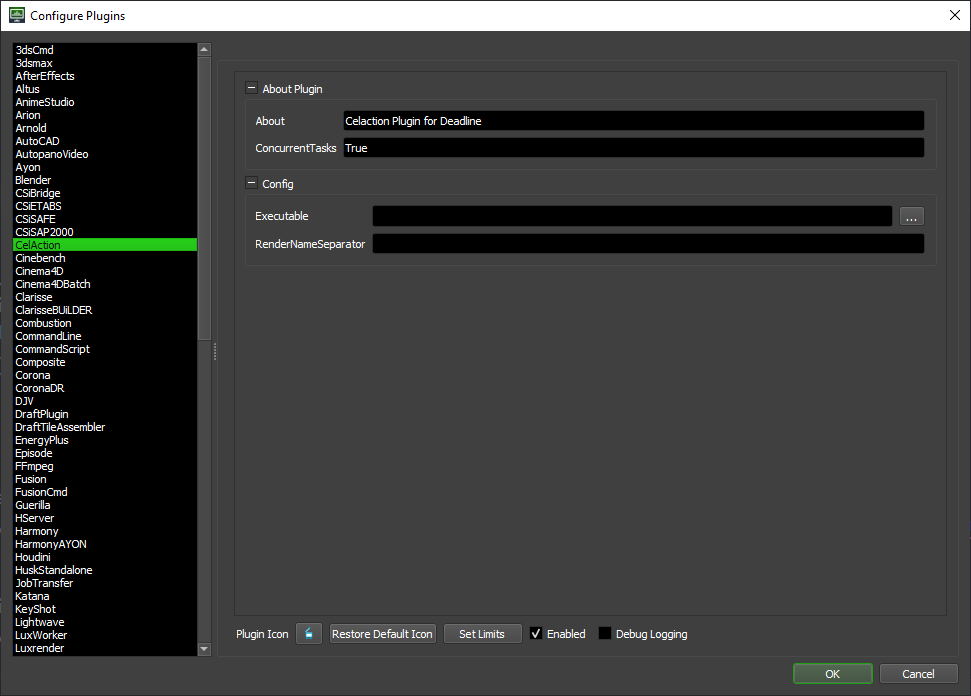
CelAction Plug-in
It's required for CelAction submissions via deadline addon.
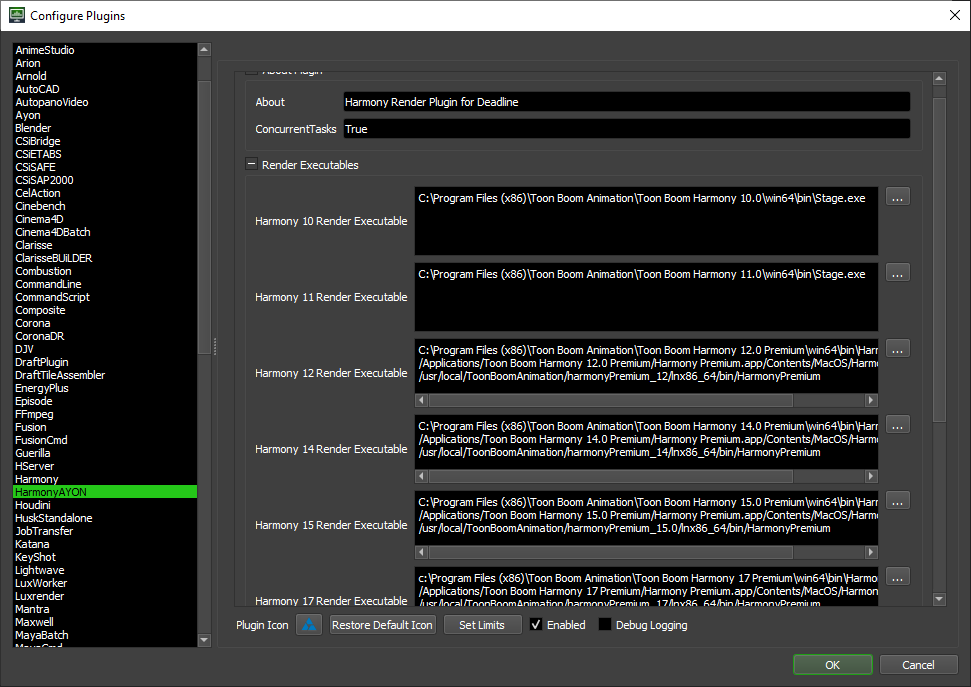
Harmony AYON Plug-in
It's required for Harmony submissions via deadline addon.
Unreal Engine 5 Plug-in
It's required for Unreal submissions via deadline addon.
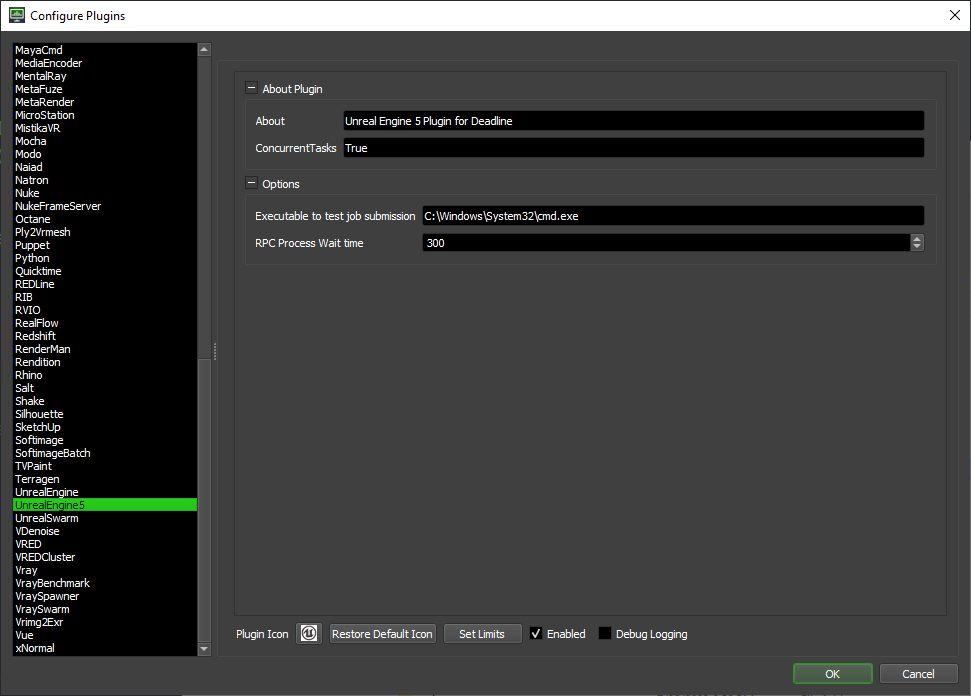
It extends the official Unreal5 Plugin to support Unreal Perforce submissions. It implements PreLoad scripts that syncs your project to change list id within the exported changelist before rendering. For more info check Working with Perforce in AYON.
Unreal submissions via deadline addon requires perforce addon and configured (P4 credentials etc.). See Perforce Addon Settings.
Husk Standalone Plug-in
It's required for Houdini
usdrendersubmissions via deadline addon.
Get it from Husk Standalone Deadline Submitter - Github by downloading it as .zip.
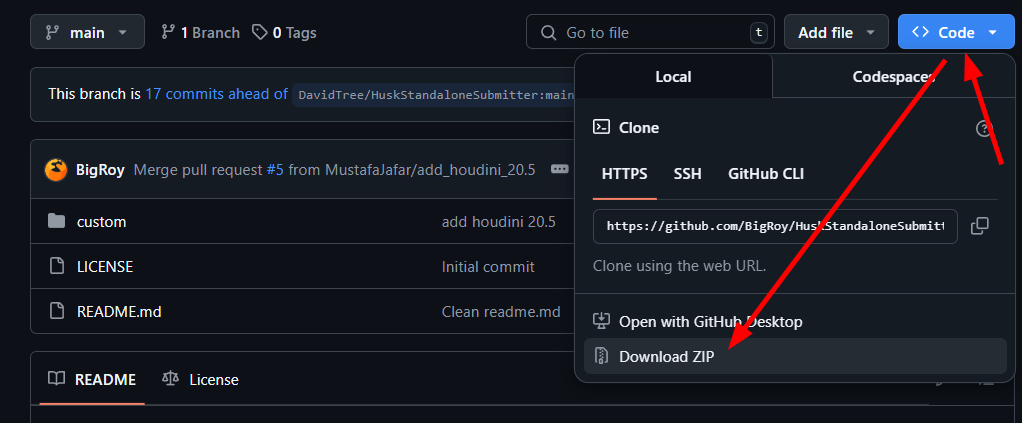
It's a repository overlay, so you can copy its content directly to your Deadline repository.
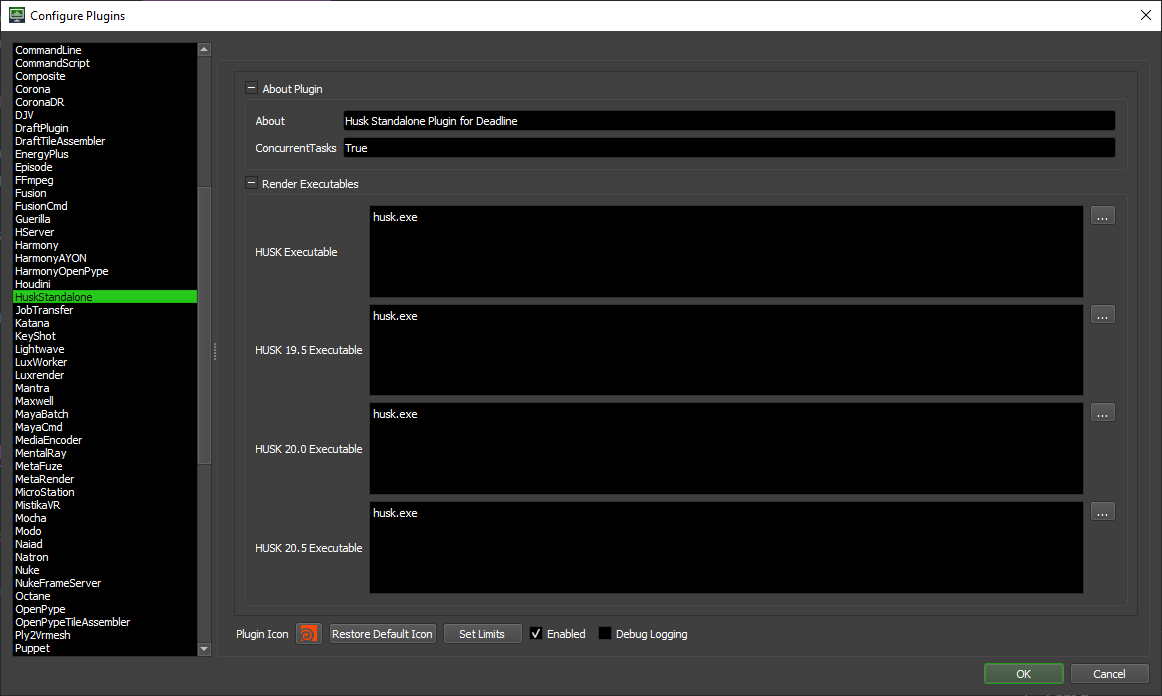
If you have followed steps in How to Submit a DCC Patch Version to Deadline, then you'd be able to use husk.exe instead of the full path.
Addon Settings
System Deadline Webservice Info
Setting Location:
ayon+settings://deadline/deadline_urls
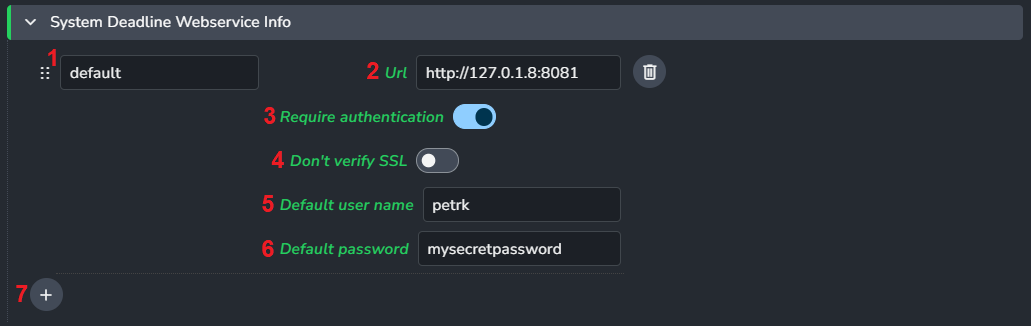
Server Name: The designated name for a deadline server.
URL: The designated IP or hostname for the deadline server, including the port (e.g., a locally running DL:
http://127.0.0.1:8081).Require Authentication: The DL webservice may require a username and password. See Authentication.
Don't verify SSL: Enable this if your DL webservice uses SSL (e.g., on
https://). Self-signed certificates might trigger an error, so disable certificate verification here.Default Username: If
Require Authenticationis enabled, this field allows you to set a single username for all artists publishing to Deadline.Default Password: The password for the default username.
+: Add more Deadline servers.
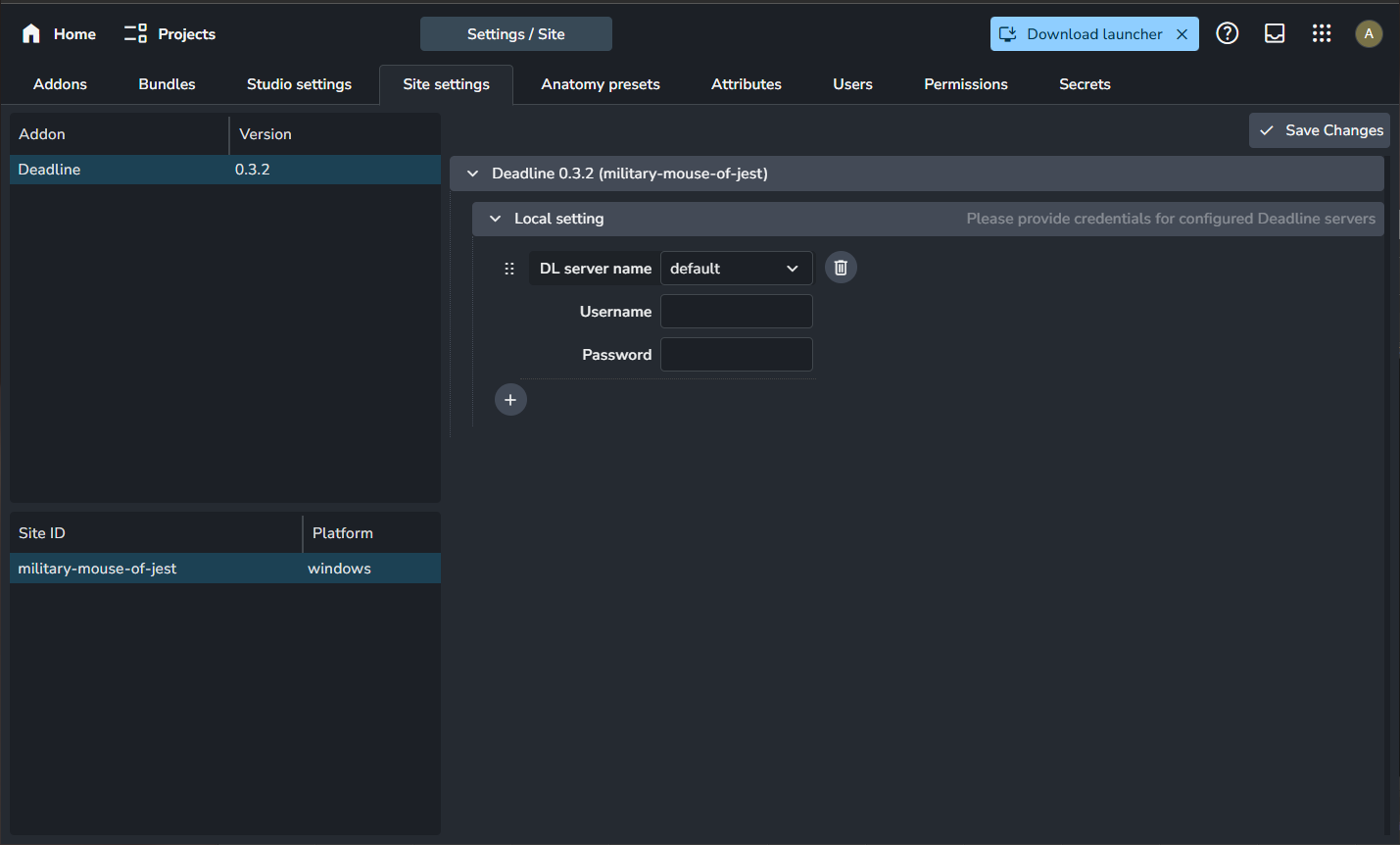
If each artist machine needs separate credentials, the admin must provide them in Site Settings on the Studio Settings page.
Render Job Settings
Setting Location:
ayon+settings://deadline/publish/CollectJobInfo

A universal Deadline job info collector used across different DCCs/Hosts. When enabled, it will select the matching profile for your DCC. It doesn't affect the AYON publish jobs or additional jobs submitted by publish plugins like export job in Houdini.
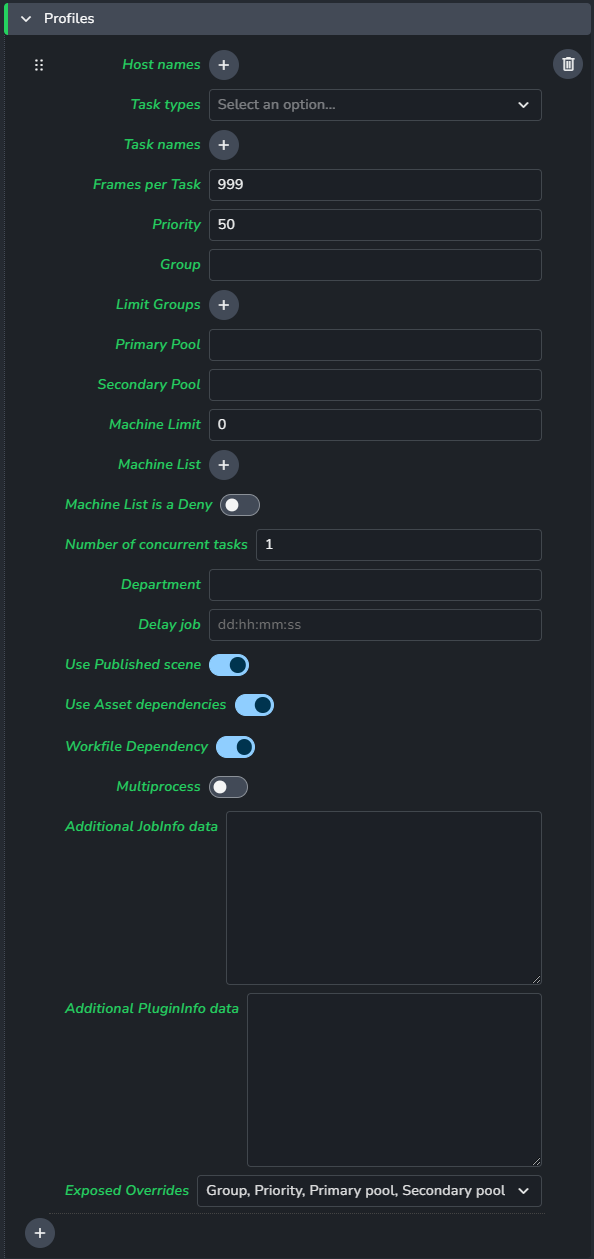
Profiles: Provides a filter for matching DCCs and specifies the job info to add.
Profiles
Host name: Pipeline integration name provided by an AYON addon.
Task Types: Select from a list of task types to determine which ones the filter profile will affect. Leave blank to apply the profile to all tasks.
Task names: List of task names to determine which ones the filter profile will affect.
Frames per Task: Number of frames per task (also known as
Chunk Size).Priority: Job’s priority (default is 50).
Group: Group to submit to.
Limit Groups: Specifies the limit groups this job belongs to (default is blank).
Primary Pool: Pool the job is submitted to (default is none).
Secondary Pool: Secondary pool the job can spread to if machines are available. If not specified, the job won't use a secondary pool.
Machine Limit: Maximum number of machines this job can be rendered on simultaneously (default is 0, meaning unlimited).
Machine List: Specifies which Workers are on the job’s list (default list is an allow list).
Machine List is a Deny: Enable to use the
Machine listas a deny list.Number of concurrent tasks: Maximum number of tasks a Worker can render at a time (default is 1).
Department: Department the job belongs to. Used to group jobs in the DL monitor; doesn't affect rendering.
Delay Job: Start time delay applied to the submission date.
Use Published Scene: Use workfile from
publishfolder, in 99% of cases should be enabled.Use Asset dependencies
Workfile Dependency: Wait for presense of workfile before rendering, in 99% of cases should be enabled
Multiprocess
Additional JobInfo data: Dictionary (JSON parsable) to add to
JobInfoof submission.Additional PluginInfo data: Dictionary (JSON parsable) to add to
PluginInfoof submission.Exposed Overrides: Expose the specified parameters to users in the Publisher UI as shown here.
+: Add a profile.
Publish Job Settings
Setting Location:
ayon+settings://deadline/publish/ProcessSubmittedJobOnFarm
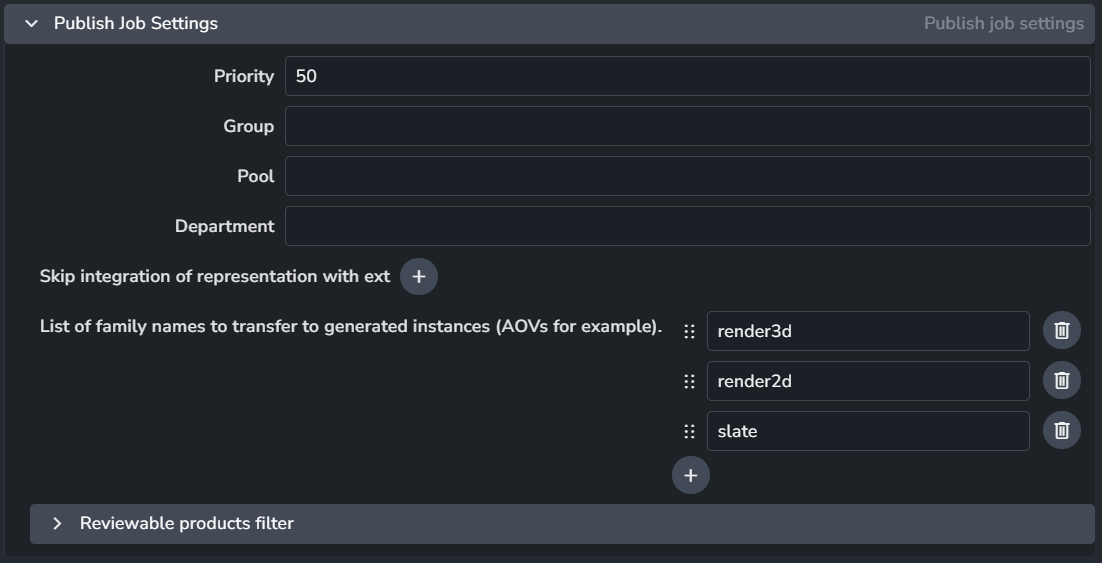
It submits a dependent AYON Job to publish the rendered images.
Department: Department the AYON publish job belongs to.
Pool: Pool the job is submitted to.
Group: Group to submit to.
Priority: Job’s priority (default is 50).
Skip integration of representation with ext: list of extensions that shouldn't be published.
List of family names to transfer to generated instances (AOVs for example): Ensure the AOV instances have these families if present.
Reviewable products filter: Add review for specific aov names.

AOV Filter
host_name: Pipeline integration name supplied by an AYON addon.
AOV Regex: AOV regex patterns for AOV filters.
+: Add more AOV regexes
+: Add more filters
Fusion Submit to deadline
Setting Location:
ayon+settings://deadline/publish/FusionSubmitDeadline

Deadline Plugin: Choose the default deadline plugin for Fusion submissions:
FusionorFusionCmd.
Houdini Submit render to deadline
Setting Location:
ayon+settings://deadline/publish/HoudiniSubmitDeadline
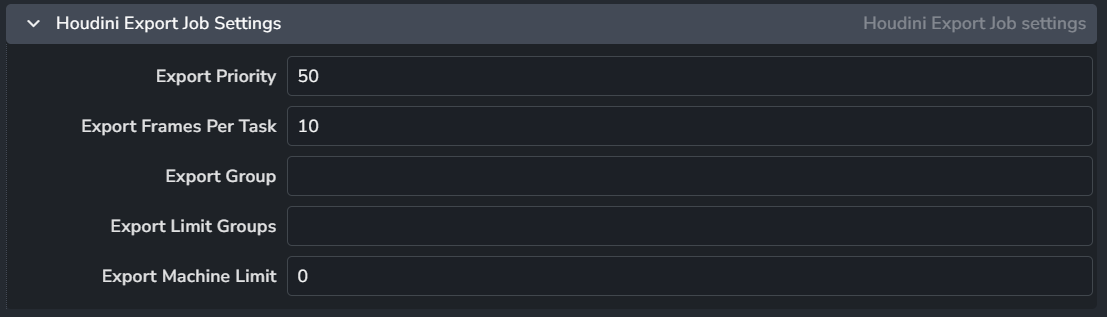
It provides additional settings specifically for the export job.
For more info, see Houdini Split Export and Render Jobs.
Export Priority: Export Job’s priority (default is 50).
Export Frames Per Task: Export Job's chunk size. (also known as
Number of frames per task).Export Group: Group to submit the export job to.
Export Limit Groups: Specifies the limit groups the export job belongs to (default is blank).
Export Machine Limit: Maximum number of machines the export job can be rendered on simultaneously (default is 0, meaning unlimited).
Houdini Cache Publish Job Settings
Setting Location:
ayon+settings://deadline/publish/ProcessSubmittedCacheJobOnFarm
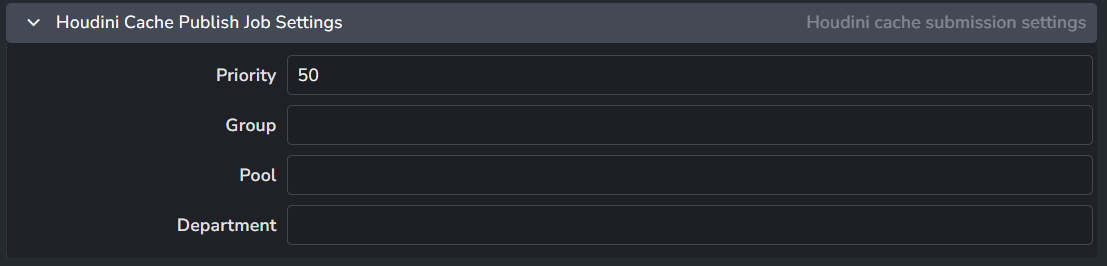
It submits a dependent AYON Job to publish the exported cache.
Department: Department the AYON publish job belongs to.
Pool: Pool the job is submitted to.
Group: Group to submit to.
Priority: Job’s priority (default is 50).
Maya
Setting Location:
ayon+settings://deadline/publish/MayaSubmitDeadline
This publish plugin can also submit Tile jobs. Tile jobs use the same job info that matches the Maya profile but also allow you to explicitly override some settings, like priority.
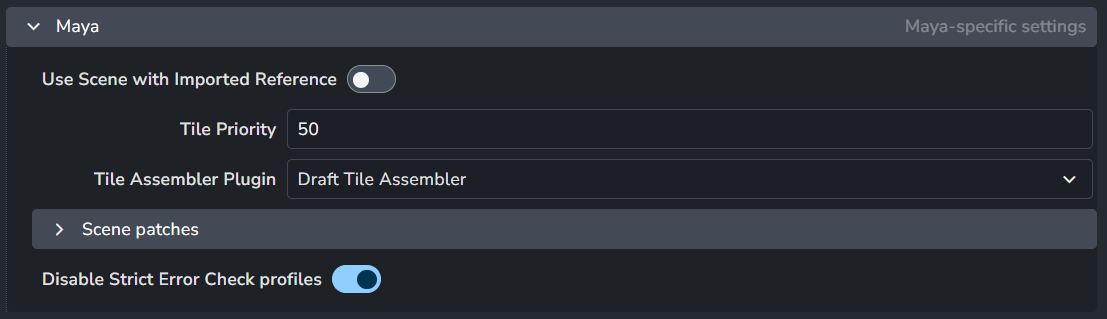
Use Scene with Imported Reference
Tile Priority: Tile job’s priority (default is 50).
Tile Assembler Plugin: Choose the default deadline plugin for Tile submissions: Currently, only
Draft Tile Assembleris available.Scene patches
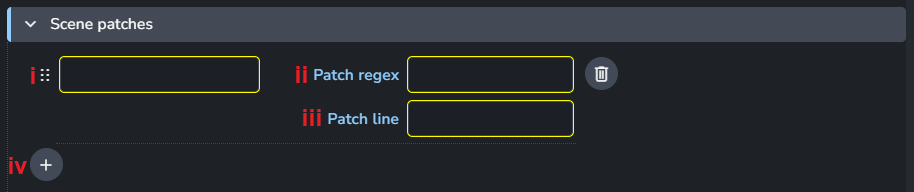
Patch name
Patch regex
Patch line
+: Add more scene patches.
Disable Strict Error Check profiles
Nuke
Setting Location:
ayon+settings://deadline/publish/NukeSubmitDeadline
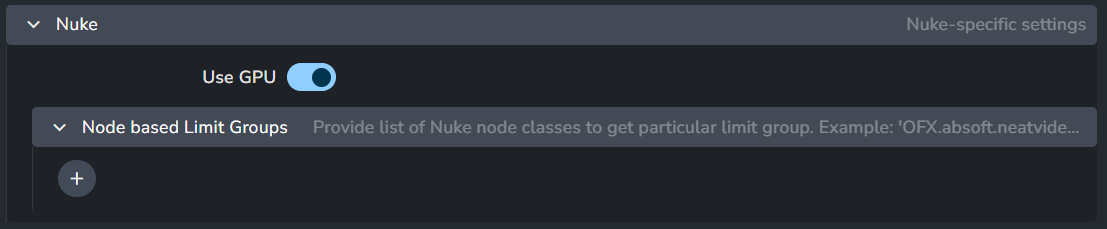
Use GPU: Use the GPU For Rendering.
Node based Limit Groups: Set limit groups based on node types in the workfile. For example, if there is a node of type X, LimitX should be added, etc.
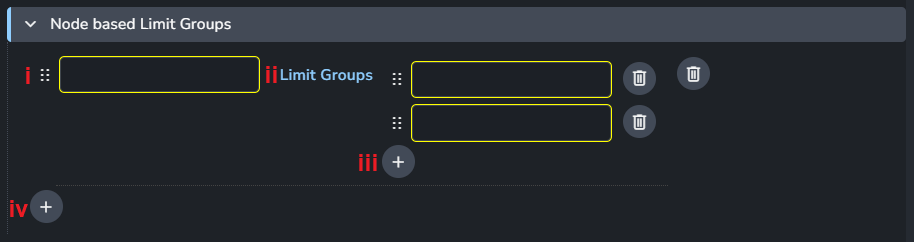
Node name
Limit Groups list
+: Add more items to the Limit group list
+: Add another Limit Groups list for a different node name.
Add AYON server to farm job
Setting Location:
ayon+settings://deadline/publish/CollectAYONServerToFarmJob
This feature is handy for submissions from a separate AYON dev server.

When enabled, submit your current AYON_SERVER_URL with the job to enforce using your current server. Based on this value Deadline can connect to different AYON (production or development installation for example). This requires modifying the Deadline AYON plugin configuration to add additional AYON servers. See Deadline AYON Plug-in.
Validate Expected Files
Setting Location:
ayon+settings://deadline/publish/ValidateExpectedFiles
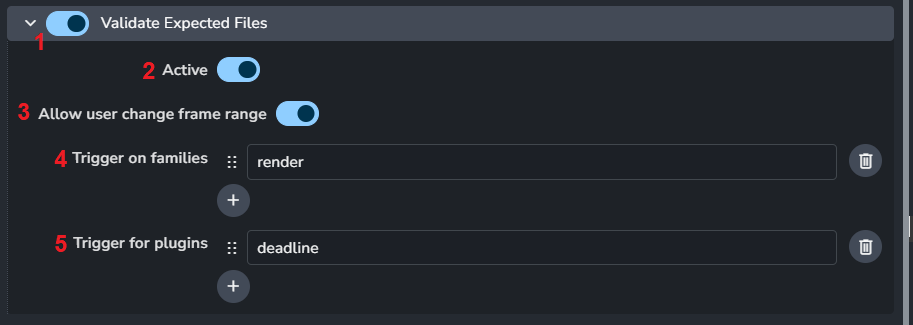
Enable: Turn on the main toggle of the plugin. Disable it to have the system ignore it.
Active: Disable this to deactivate the plugin. The system will recognize the plugin, but it won't function.
Allow user change frame range
Trigger on families: List of
familiesto determine which ones the validator will affect.Trigger for plugins: List of
targetsto determine which ones the validator will affect.
Troubleshooting
Publishing jobs fail directly in DCCs
Double check that all previously described steps were finished
Check that
deadlinewebserviceis running on DL serverCheck that user's machine has access to deadline server on configured port
Jobs are failing on DL side
Each publishing from AYON consists of 2 jobs, first one is rendering, second one is the publishing job (triggered after successful finish of the rendering job).

Jobs are failing with
AYON executable was not founderrorCheck if AYON is installed on the Worker handling this job and ensure
AYONDeadline Plug-in is properly configured
Render jobs are failing with
Got invalid credentials. Invalid API key for...errorIf you are sure that you provided correct AYON API key in Deadline
Configure Plugin, check if you have enabled Deadline Secrets Management.You will need to grant access to secrets to user or machine.
You will need to run this command on Deadline Server machine:
deadlinecommand secrets GrantKeyAccessToServer {SECRETS_USER} defaultKey {NODE_ID}See more details Deadline Secrets Management - GrantKeyAccessToServer
Publishing job is failing with
ffmpeg not installederrorAYON executable has to have access to
ffmpegexecutable, check AYONayon+settings://ayon_third_party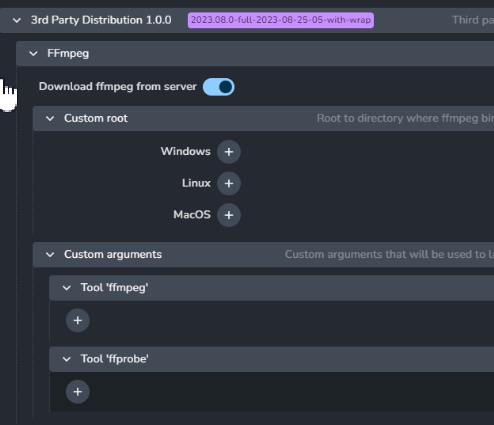
Both jobs finished successfully, but there is no review on Ftrack
Make sure that you correctly set published family to be send to Ftrack.
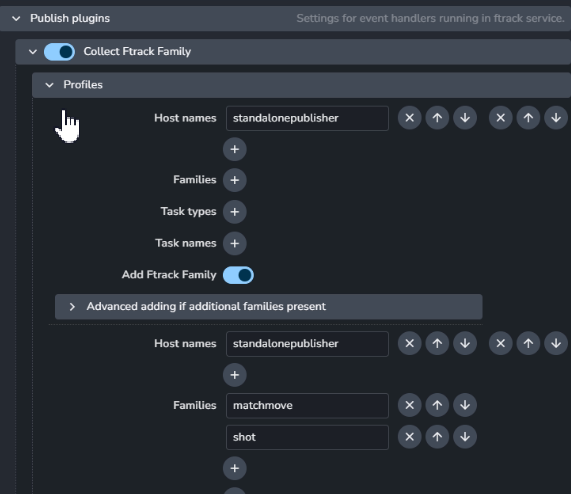
Example: I want send to Ftrack review of rendered images from Harmony :
 - `Host names`: "harmony"
 - `Families`: "render"
 - `Add Ftrack Family` to "Enabled"
Make sure that you actually configured to create review for published product in
ayon+settings://deadline/publish/ProcessSubmittedJobOnFarmExample: I want to create review for all reviewable products in Harmony :
- Add "harmony" as a new key an ".*" as a value.
Rendering jobs are stuck in 'Queued' state or failing
Make sure that your Deadline is not limiting specific jobs to be run only on specific machines. (Eg. only some machines have installed particular application.)
Check job info profiles.
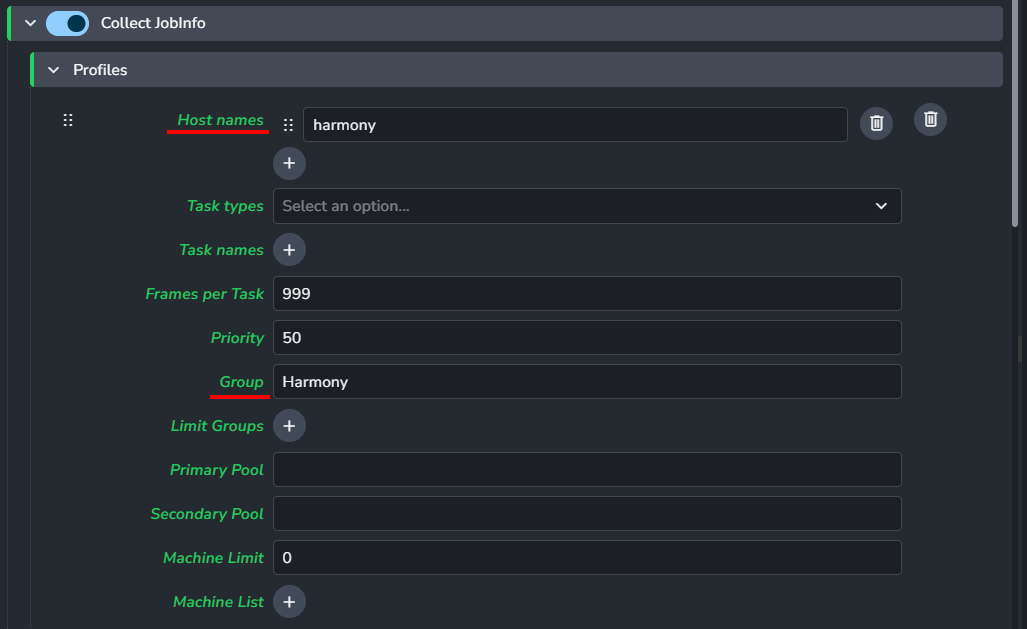
Example: I have separated machines with "Harmony" installed into "harmony" group on Deadline. I want rendering jobs published from Harmony to run only on those machines.
FAQ
How to Submit a DCC Patch Version to Deadline
AYON's custom Deadline GlobalJobPreLoad script simplifies running specific application patch versions by injecting application-specific environment variables before a render job starts.
This allows Deadline app plugins to locate an executable by name rather than relying on a hardcoded absolute path. For Deadline to locate the executable by name, its installation directory must be present in the worker machine's PATH environment variable.
Step-by-Step Configuration
Update the Deadline Plugin Configuration: In the Deadline Repository, update your application plugin (e.g., the Houdini plugin) so that the executable path points to the executable name rather than a static full file path:
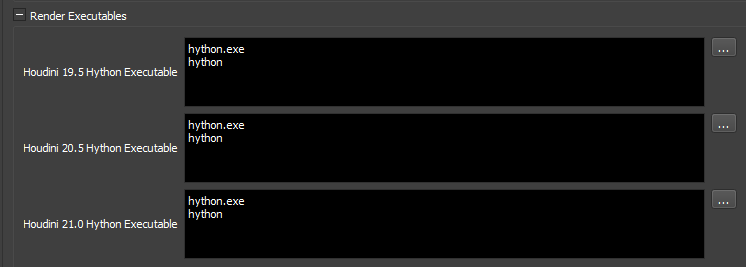
Houdini Deadline Plugin 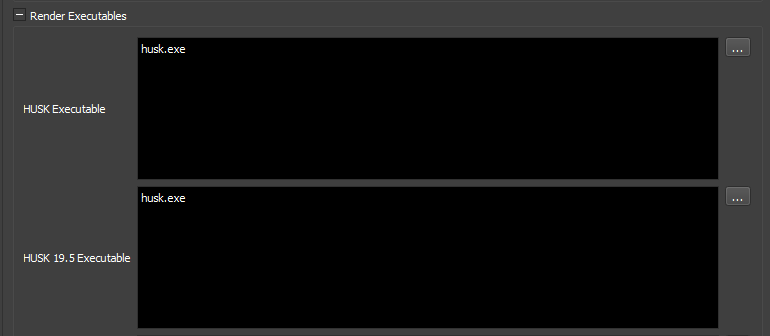
Husk Deadline Plugin Configure AYON Environment Variables: To ensure Deadline finds the executable, append the installation directory to
PATH. This is set up in two steps inside the Application addon settings:A. Global Application Environment:
Add
HOUDINI_EXEC_DIRand prepend it toPATHin the global Houdini environment settings:{ "HOUDINI_EXEC_DIR": { "windows": "C:\\Program Files/Side Effects Software/Houdini {HOUDINI_VERSION}/bin", "darwin": "/Applications/Houdini/Houdini{HOUDINI_VERSION}/Frameworks/Houdini.framework/Versions/Current/Resources/bin", "linux": "/opt/hfs{HOUDINI_VERSION}/bin" }, "PATH": [ "{HOUDINI_EXEC_DIR}", "{PATH}" ] }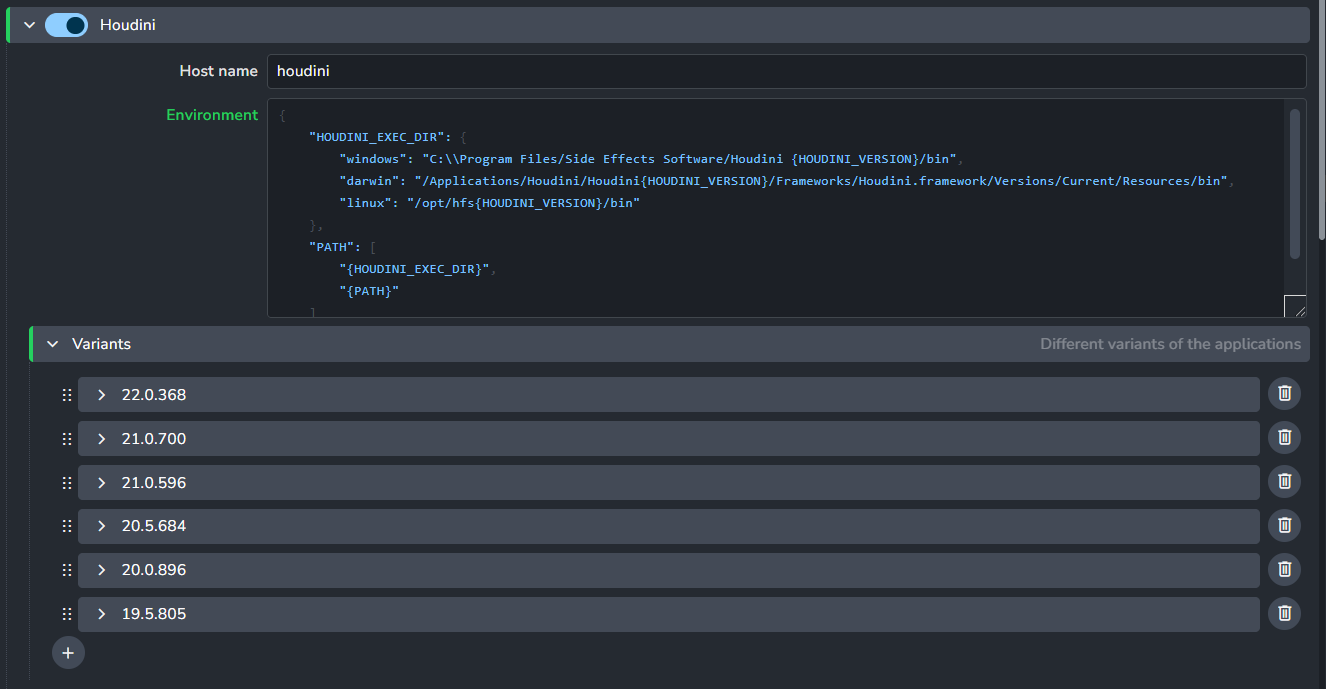
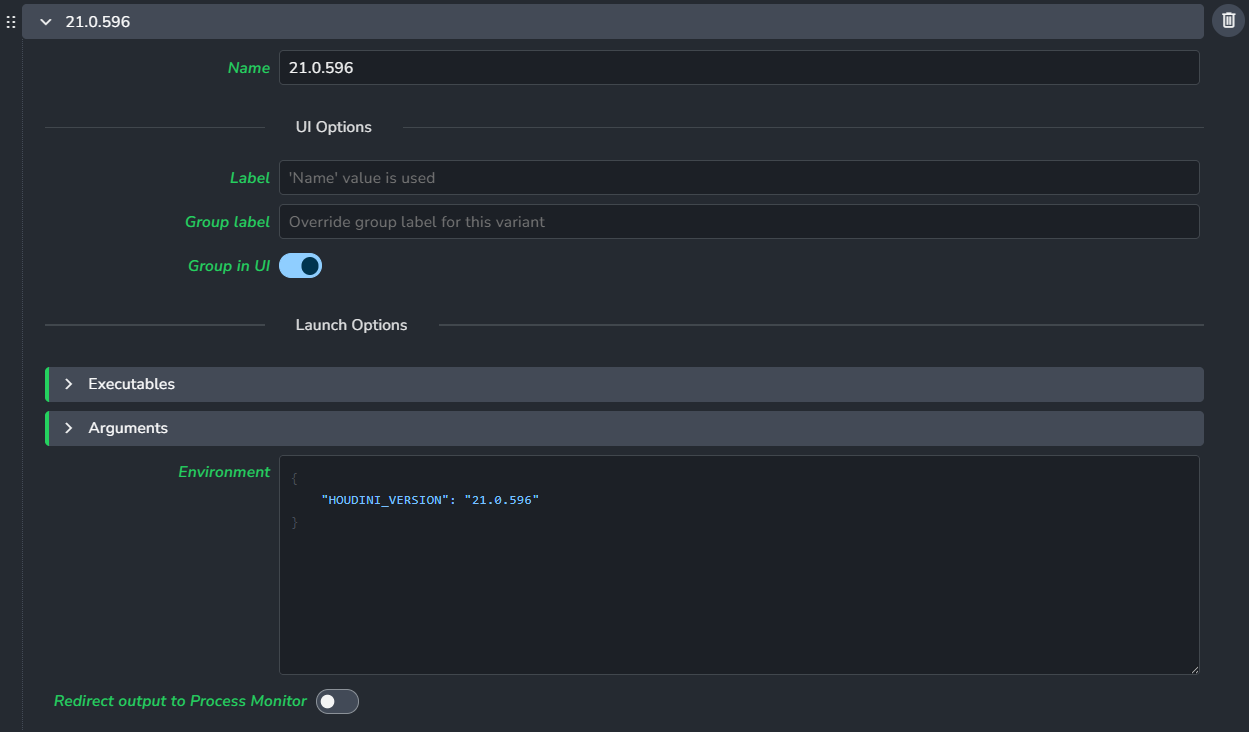
B. Version Variant Environment:
Define the
{HOUDINI_VERSION}template variable under the specific Houdini version variant settings (e.g.,21.0.596):{ "HOUDINI_VERSION": "21.0.596" }