Houdini AYON Loader HDAs
Last updated About 1 year ago
Introduction
AYON Loader HDAs serve as controllers that let you select and load AYON products into your scene.
Generic Loader: As the name suggests, it is generic and loads any AYON product as a filepath.
Lop Import (Load Asset): Loads USD assets.
Load Shot: Loads USD shots.
Generic Loader |
Currently, Available in 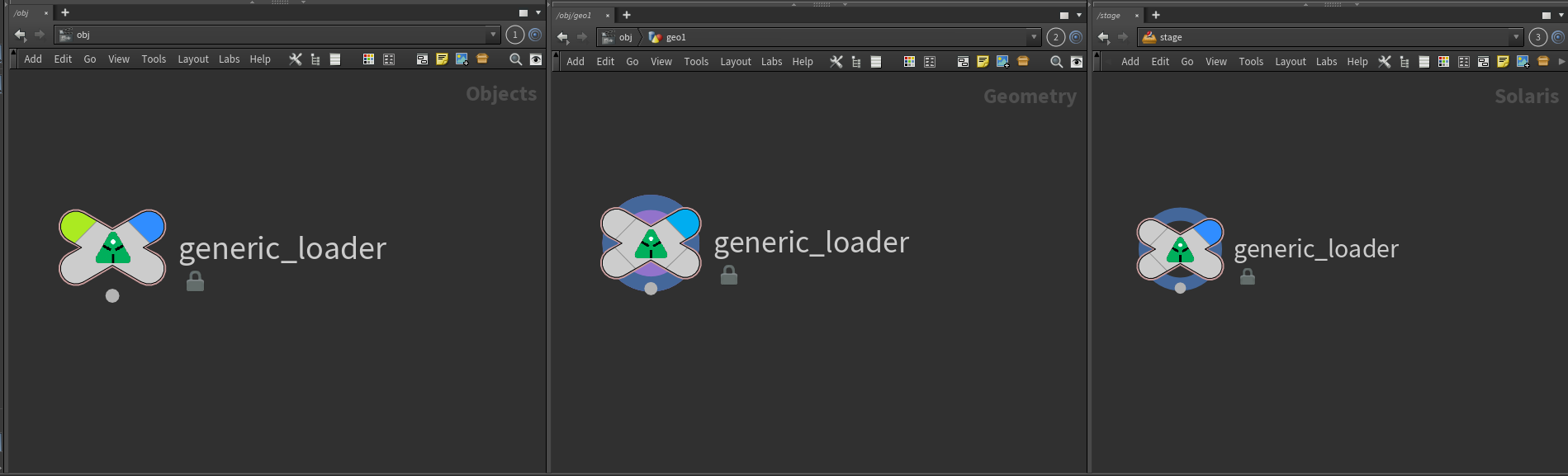 |
LOP Import | Load Shot |
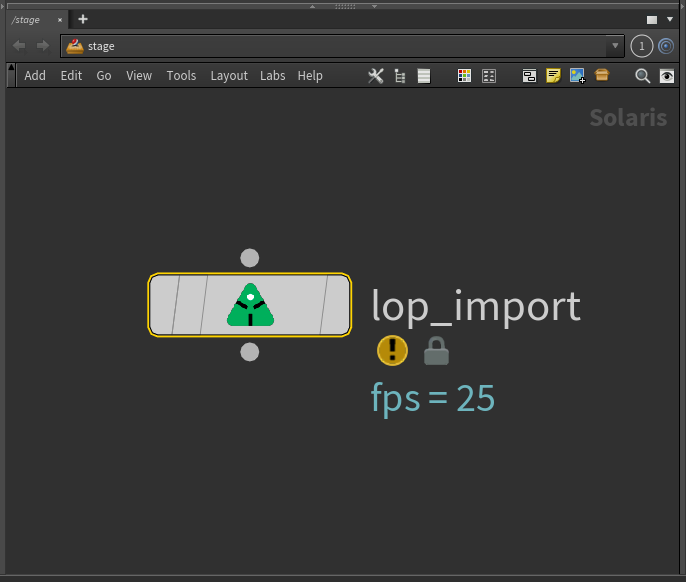 | 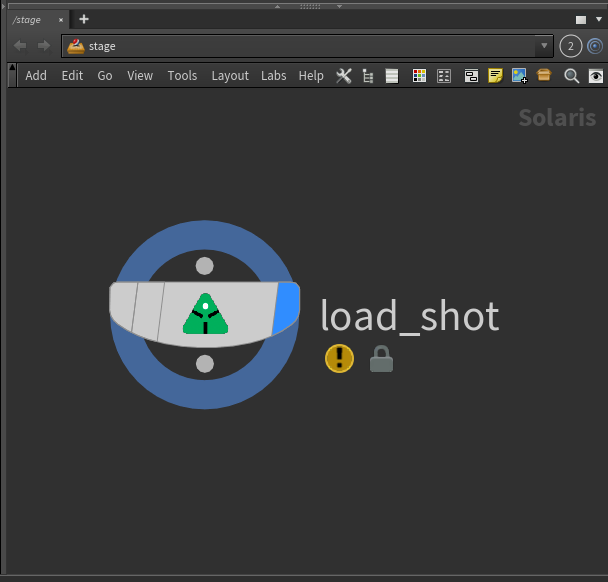 |
Access Loader HDAs
TAB Menu
These nodes are accessible in the TAB menu.
LOPs | OBJs | SOPs |
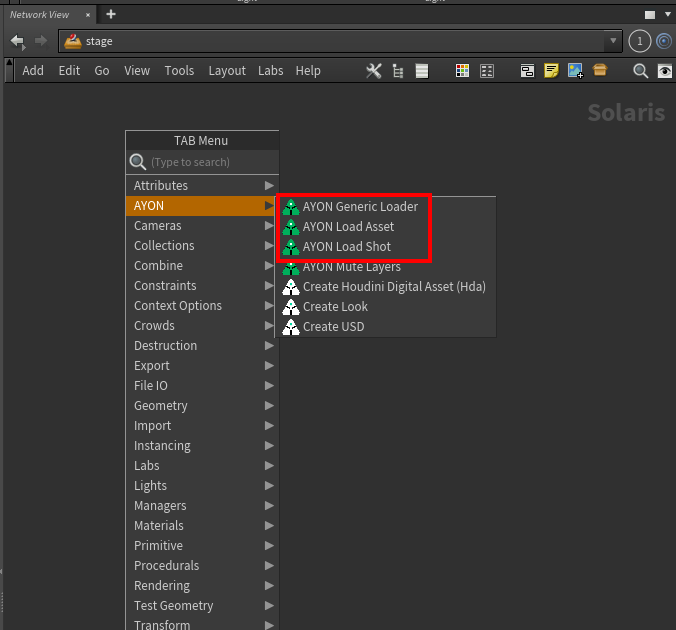 | 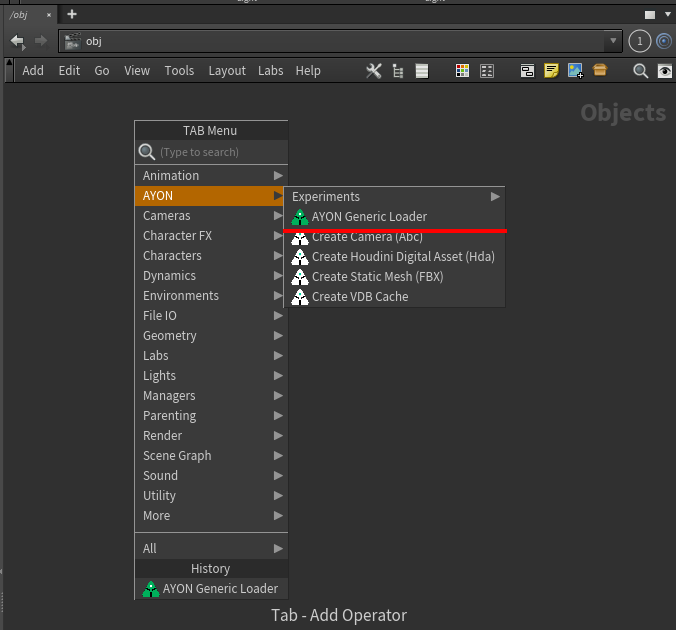 | 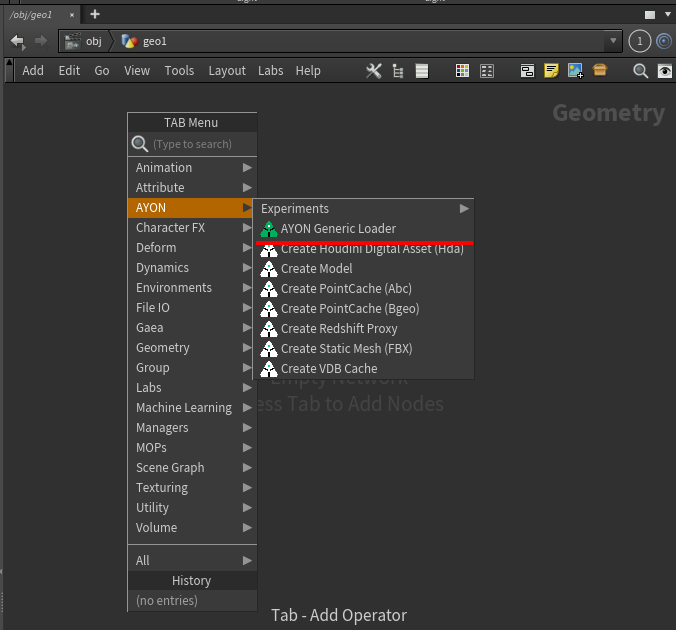 |
Loader Tool
Some loader plugins rely on these nodes to perform loading:
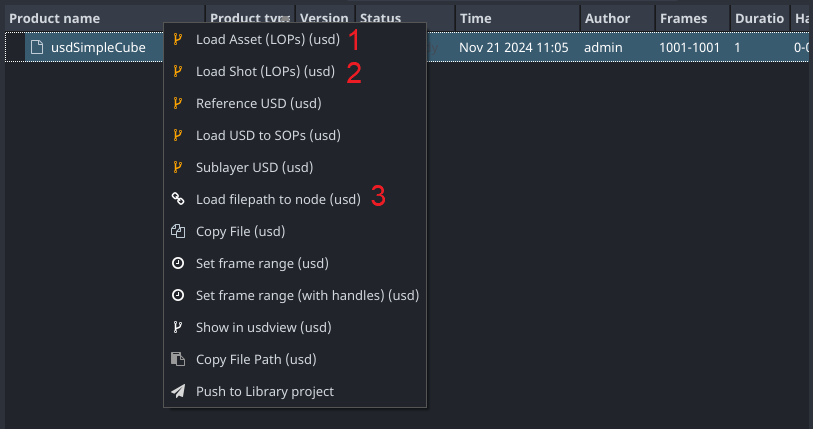
Load Asset: Creates a
LOP Importnode in\stage.Load Shot: Creates a
Load Shotnode in\stage.Load Filepath to Node: Creates a
Generic Loadernode in\obj\AVALON_CONTAINERS.
Quickly Load into Any String Parameter
You can find a parameter action called Load with AYON by right-clicking any file-type parameter on non-Rop nodes. This action creates a Generic Loader node in \obj\AVALON_CONTAINERS, copies its file parameter to the File parameter where the action was triggered, and opens the parameter panel for the created Generic Loader node.
When using the Load with AYON parameter action with a file parameter already connected to a Generic Loader, it opens the parameter panel for that Generic Loader node without creating a new one.
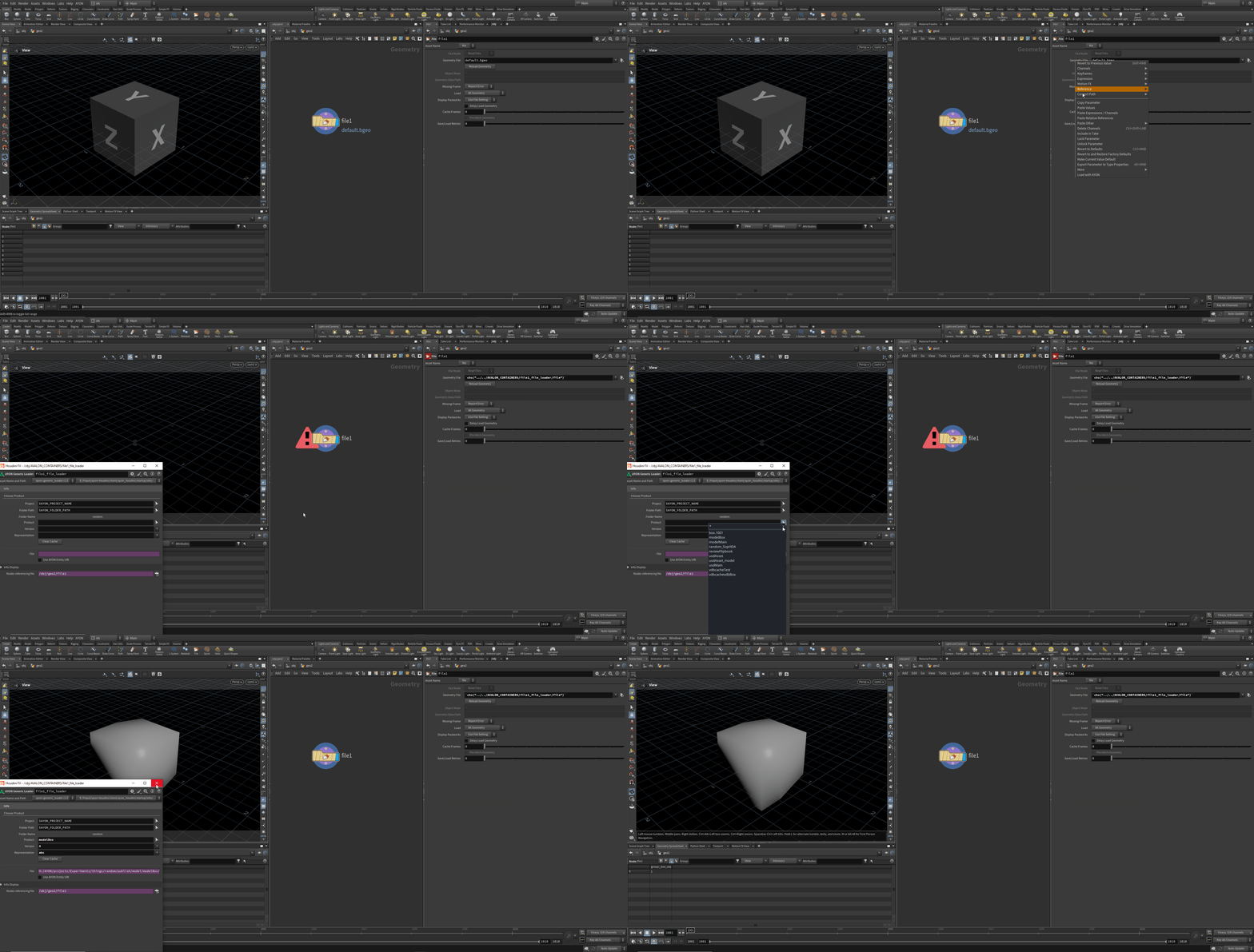
Loader HDAs
Generic Loader
Overview
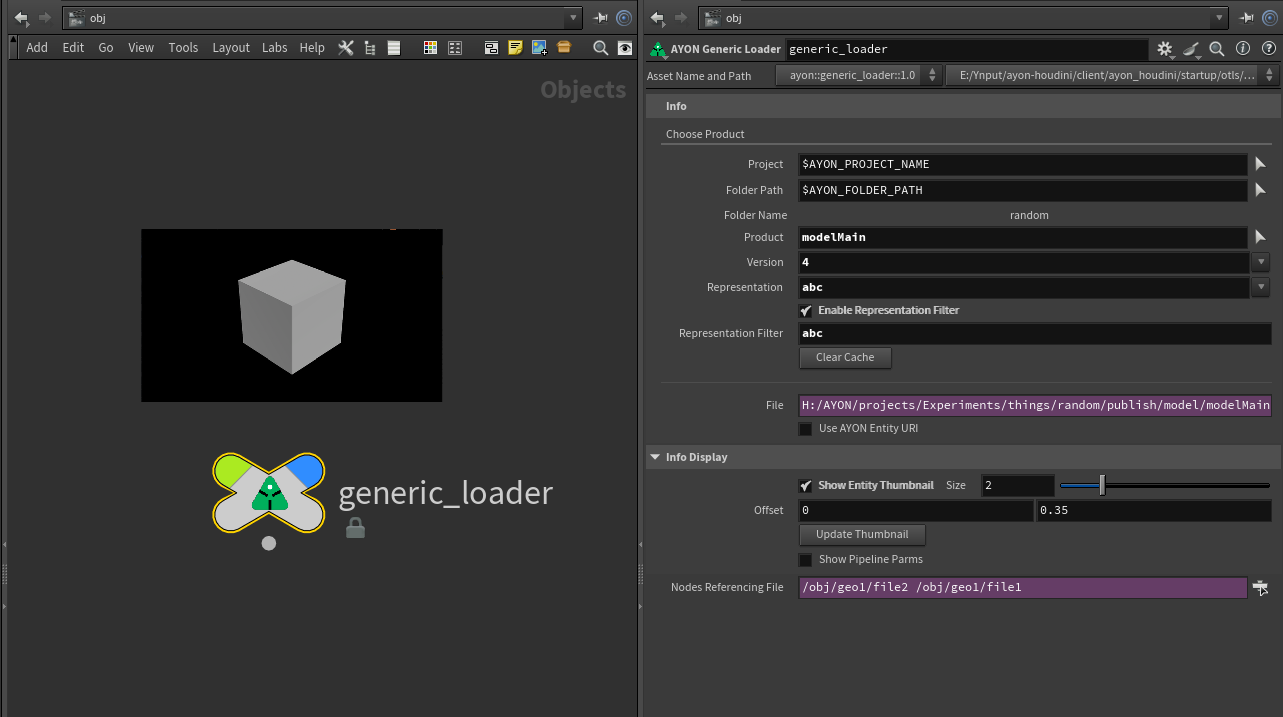
Parameters
Project: Select a project.
Folder Path: Select a folder path.
Folder Name: Shows the name of the selected folder.
Product: Select a product.
Version: Select the product's version.
Representation: Select the product's representation (format).
Enable Representation Filter: Toggle to show the Representation Filter parameter.
Representation Filter: Enter a space-separated list of representation names to filter. This filters the representation drop-down menu.
Clear Cache: Clears the node's cache.
File: Displays the file of the selected product. Automatically applies
$Fand<UDIM>tokens.Use AYON Entity URI: When enabled, the File parameter becomes an AYON URI.
Show Entity Thumbnail: When enabled, shows the selected product's thumbnail and extra parameters for adjusting the image in the network view.
Size & Offset: Adjust the displayed thumbnail in the network view.
Update Thumbnail: Click to manually update the thumbnail. Use this if auto-update doesn't work.
Show Pipeline Parms: Displays extra pipeline parameters like
Representation ID, mainly for debugging and automation.Nodes Referencing File: Displays nodes that reference the
Fileparameter.
How to Use Generic Loader
Select the project and folder path.
Choose the product, version, and representation.
The File parameter will be populated, allowing you to copy and use it as needed.
Product selection fields support expressions and context options. Find examples below Example Usages.
Lop Import
Overview
It uses a combination of the Generic Loader and the Reference node.
The representation filter parameter on the inner
Generic Loadernode is set to:usd usda usdlc usdnc abc
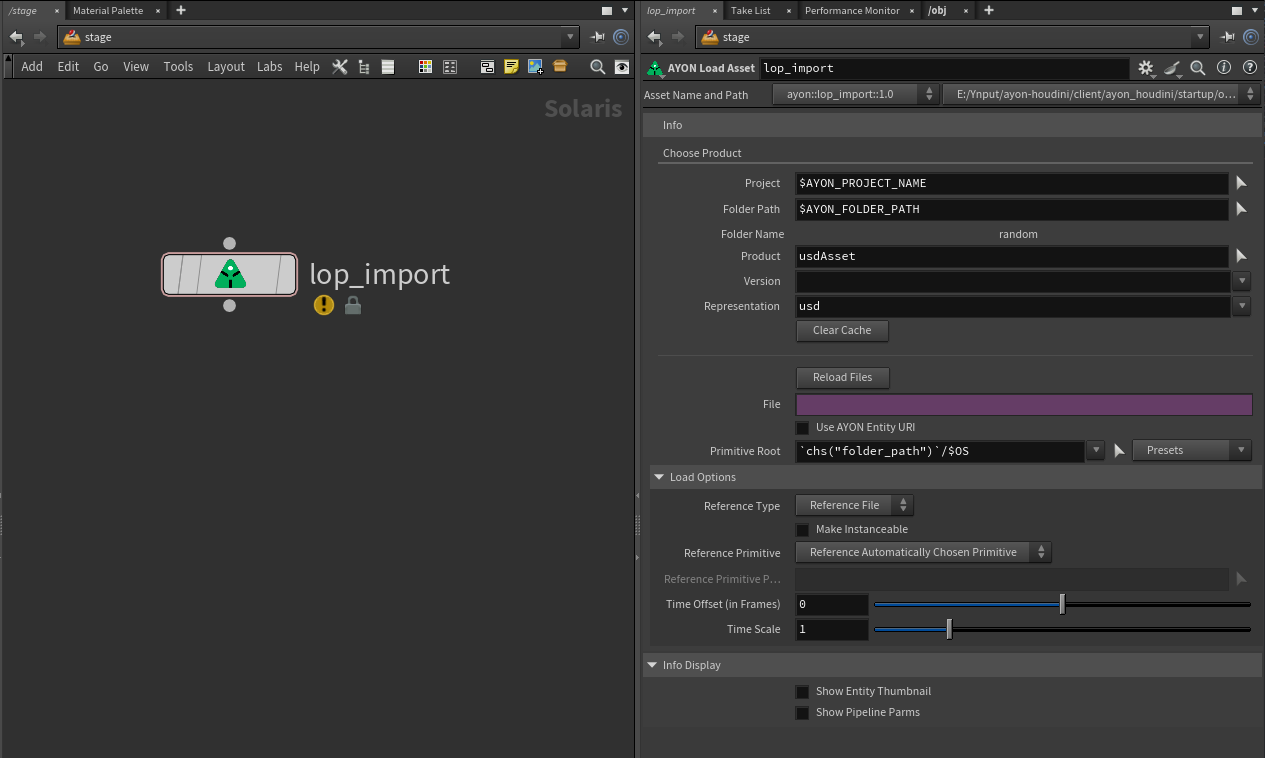
Parameters
This shares the same parameters as the Generic Loader and adds a few more. It also exposes some parameters of the Reference node.
Additional parameters on the node include:
Reload Files: Click to reload the contents of all files imported by this node.
Primitive Root: The referenced prim will be overlayed onto this prim, and the referenced prim’s descendants will become this prim’s descendants. If this prim doesn’t exist, the node will create it.
Presets: This menu provides default values for building assets and shots.
Reference Type: The type of composition arc to create to the referenced prim.
Make Instanceable: Mark the new or modified prims as instanceable.
Reference Primitive: Controls which prim to import from the multi-input connections.
Reference Primitive Path: The scene graph path of the prim in the referenced layer that that is composed onto the stage. Contents of the referenced layer outside of this referenced primitive path will not appear on the composed stage. This parameter is only used if the Reference primitive parameter is set to “Reference specific primitive”.
Time Offset (in Frames): Offsets all time samples from the file or target primitive on the first input. You can use this to re-time animations in the references file.
Time Scale: Scales all time samples from the file or target primitive on the first input. You can use this to re-time animations in the references file.
How to Use LOP Import
Selecting products works the same as with the Generic Loader.
Set the
Primitive Root. ThePresetsmenu provides default values for building assets and shots.
Load Shot
Overview
It uses a combination of the Generic Loader and the Sublayer node.
The representation filter parameter on the inner
Generic Loadernode is set to:usd usda usdlc usdnc abc
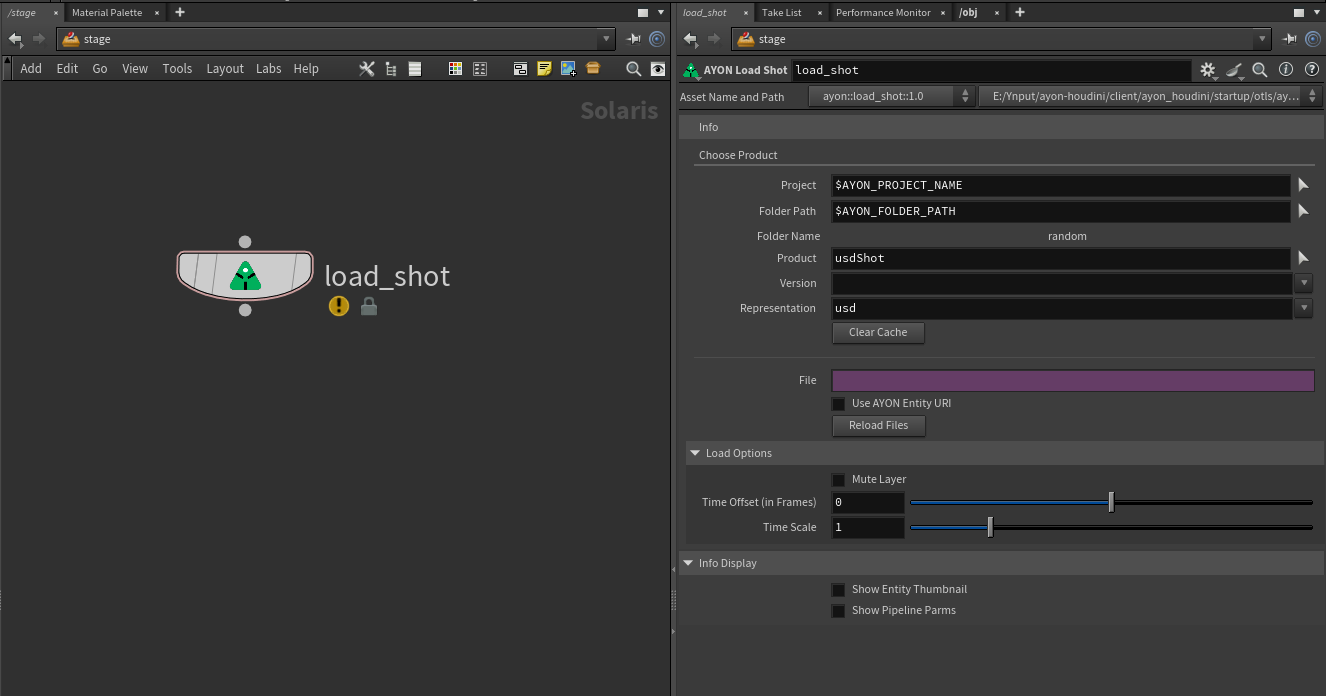
Parameters
It shares the same parameters as the Generic Loader and also exposes some parameters of the Sublayer node:
Reload Files: Click to reload the contents of all files imported by this node.
Mute Layer: Load the layer but immediately mute it. This may be useful if the layer must be loaded for other layers to work, but you don’t need to edit or display it.
Time Offset (in Frames): Offsets all time samples from the file or target primitive on the first input. You can use this to re-time animations in the references file.
Time Scale: Scales all time samples from the file or target primitive on the first input. You can use this to re-time animations in the references file.
How to Use Load Shot
Selecting products works the same as with the Generic Loader.
Keep in mind, it adds the loaded product as a sublayer.
Example Usages of Loader HDAs
These examples come from tests during the development of the HDAs and various discussions in our community. You might find some inspiration here. While they may not perfectly meet your studio's needs, they can serve as a good starting point.
Feel free to share your examples with us on the Ynput Community Forums.
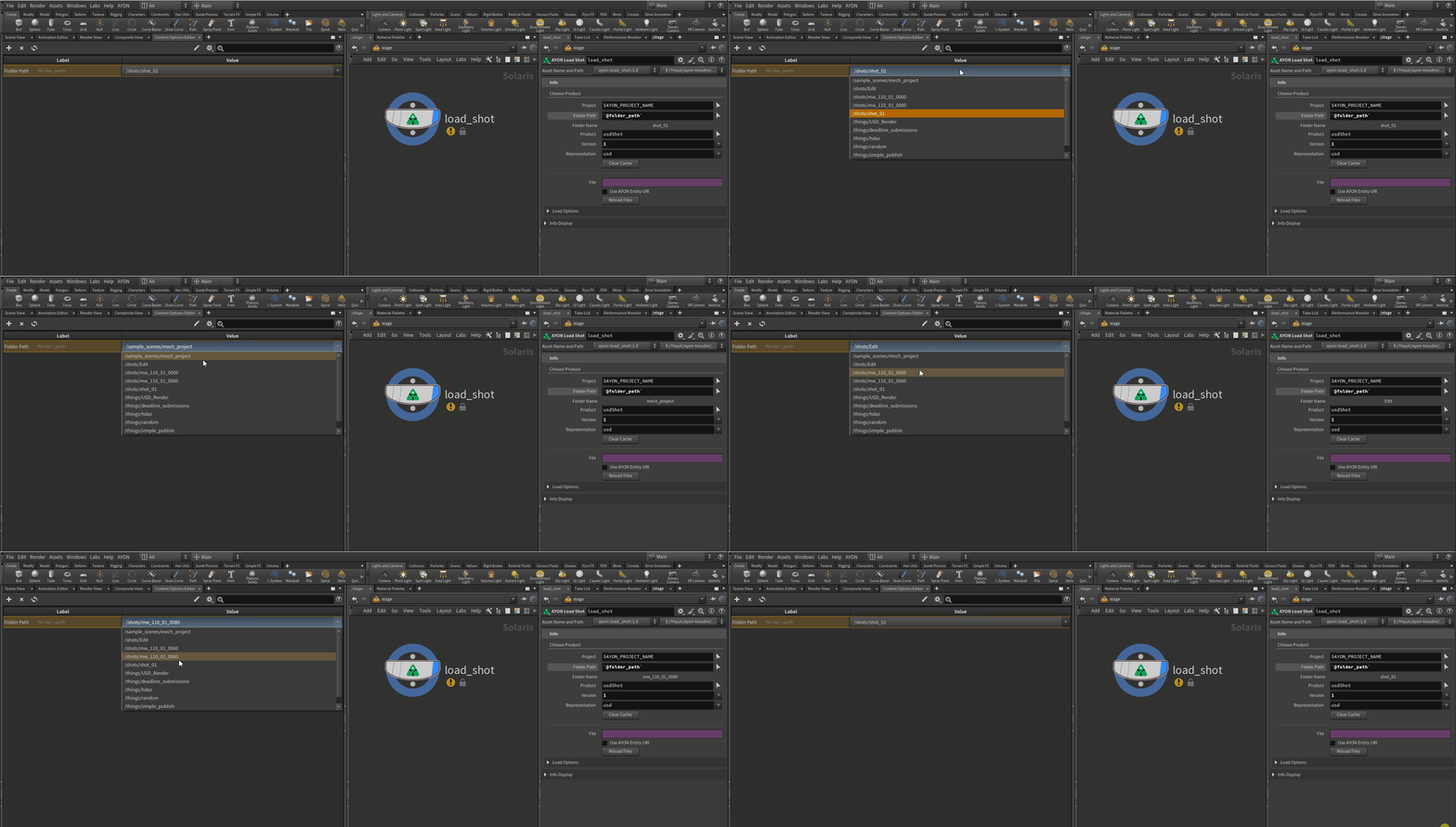
Context Options and MultiShots
You can use a context options entry to select from, allowing the user to choose any folder in the project. For example, you can create a context options menu that includes all folder paths in the current project.
Expressions and Context Options
AYON Loader HDAs support expressions and context options, allowing users to automate operations.
For instance, you can use this feature to load multiple products in a loop with a single loader. This method requires the products to share the same name, differing only by a number.
First, I published three products: pointcacherock_1, pointcacherock_2, and pointcacherock_3.

Next, I loaded them into my scene using loader HDAs in a loop with expressions.
LOP, expressions, and context options:
pointcacherock_`@ITERATIONVALUE+1`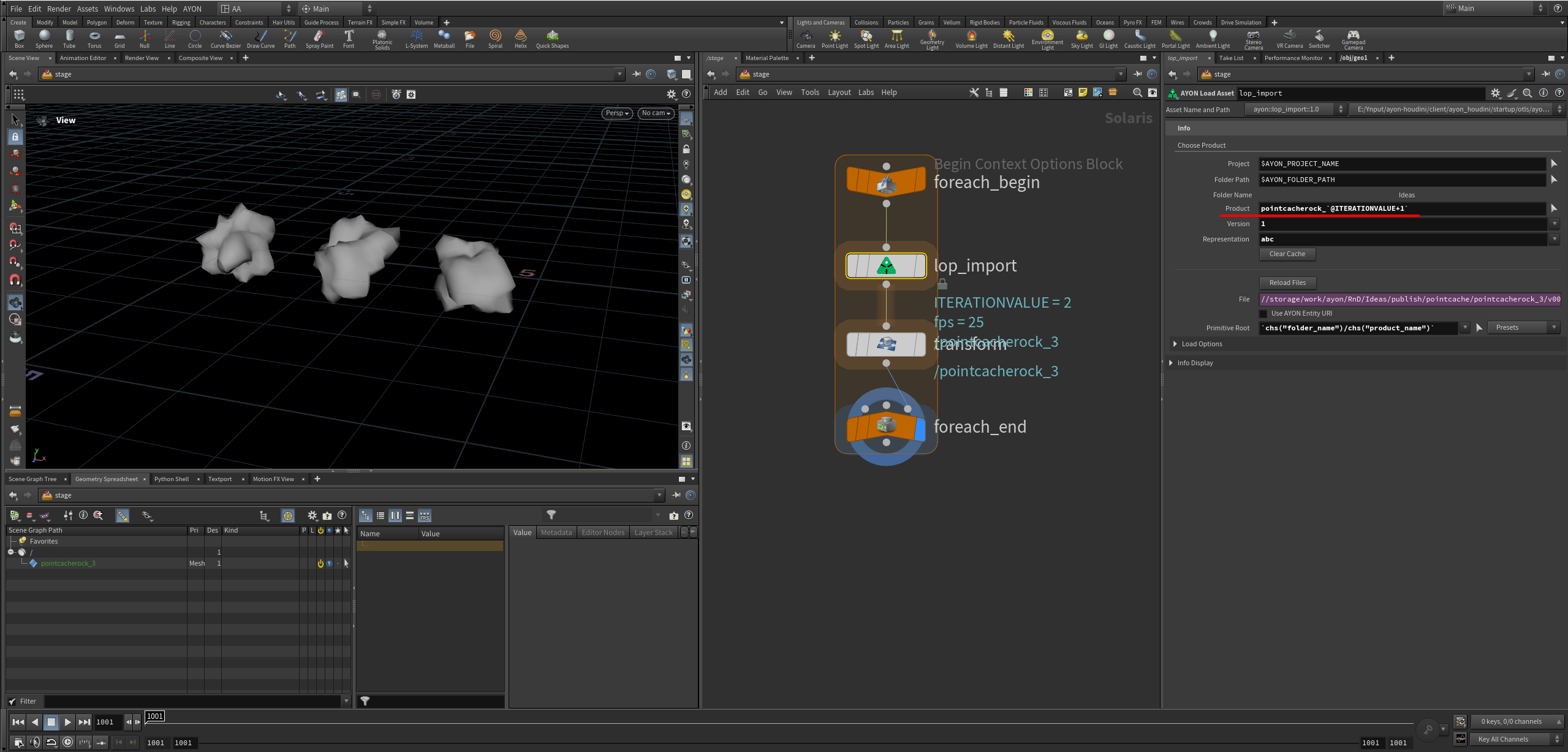
SOP, expressions, and detail attribute:
pointcacherock_`detail("../foreach_count","iteration", 0)+1`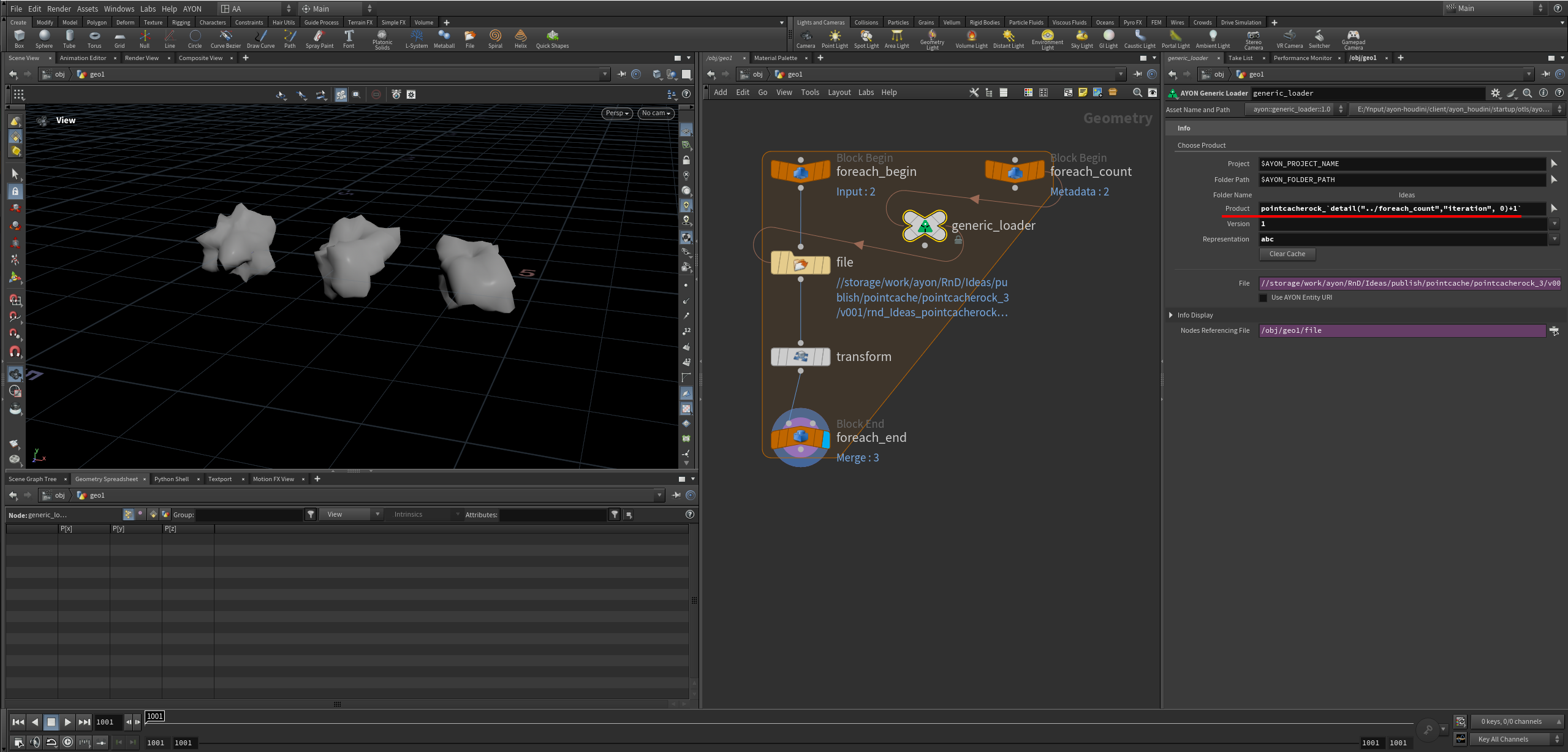
Building Custom HDAs on Top of Loader HDAs
Loader HDAs are highly versatile and can be integrated as foundation for building custom Loader HDAs. This guide outlines the process and provides examples to help you get started.
Building a Custom HDA in AYON with a Loader HDA Inside
Follow these steps to create a custom HDA using Houdini AYON loader HDAs and promote the parameters properly:
Create a Subnetwork: Start by creating a subnetwork.
Add Internal Nodes: Add the nodes you need within the subnetwork based on your requirements.
Promote Parameters: Open the
Edit Parameter Interfacefor the subnetwork. In theParameterstab, go toNode Properties, select the required parameters, and use the arrow button to add them.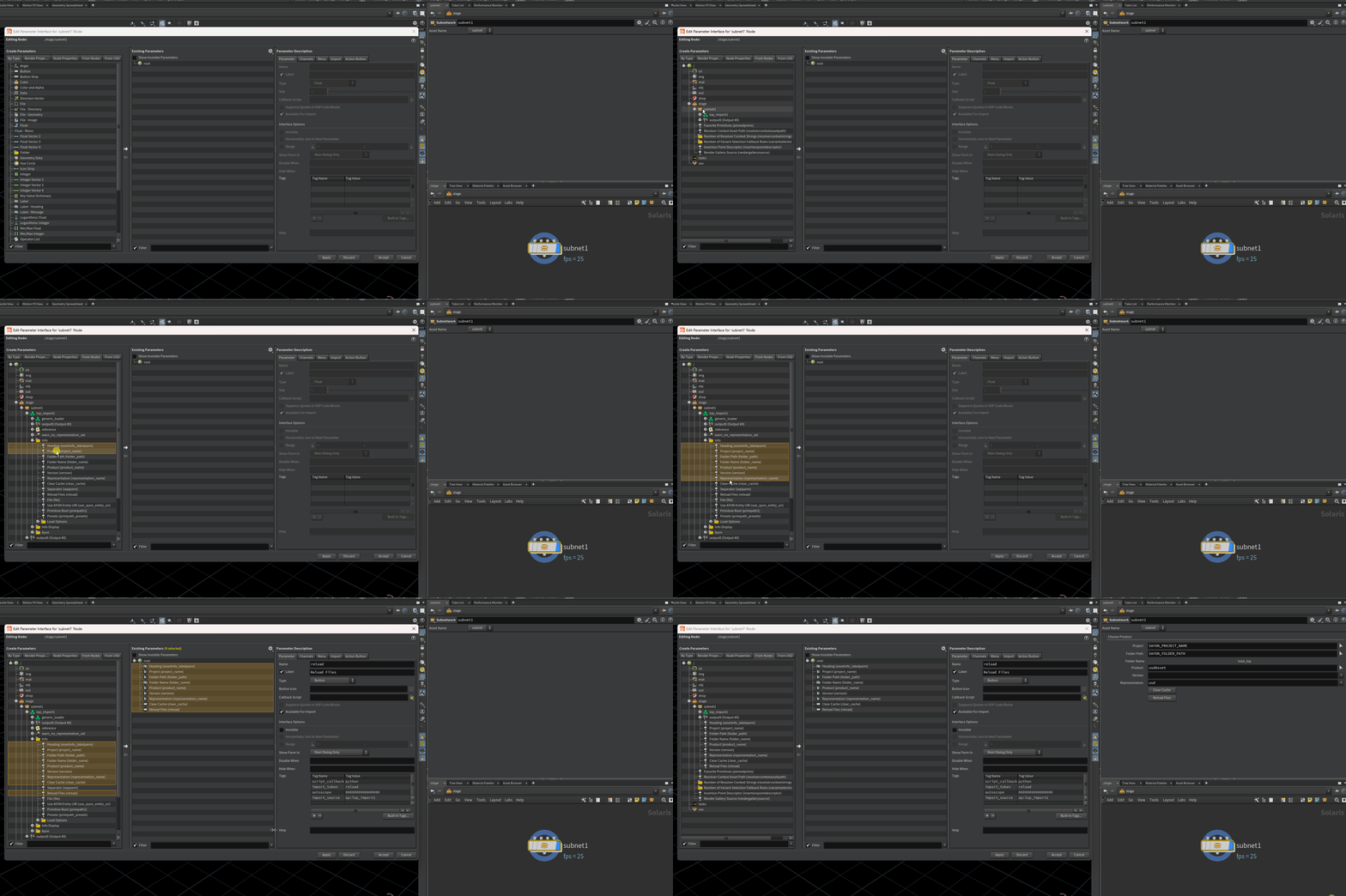
Create the HDA: Select your subnetwork, and using the Creator / Publisher
AYON tool, choose the HDA product type and click
Create.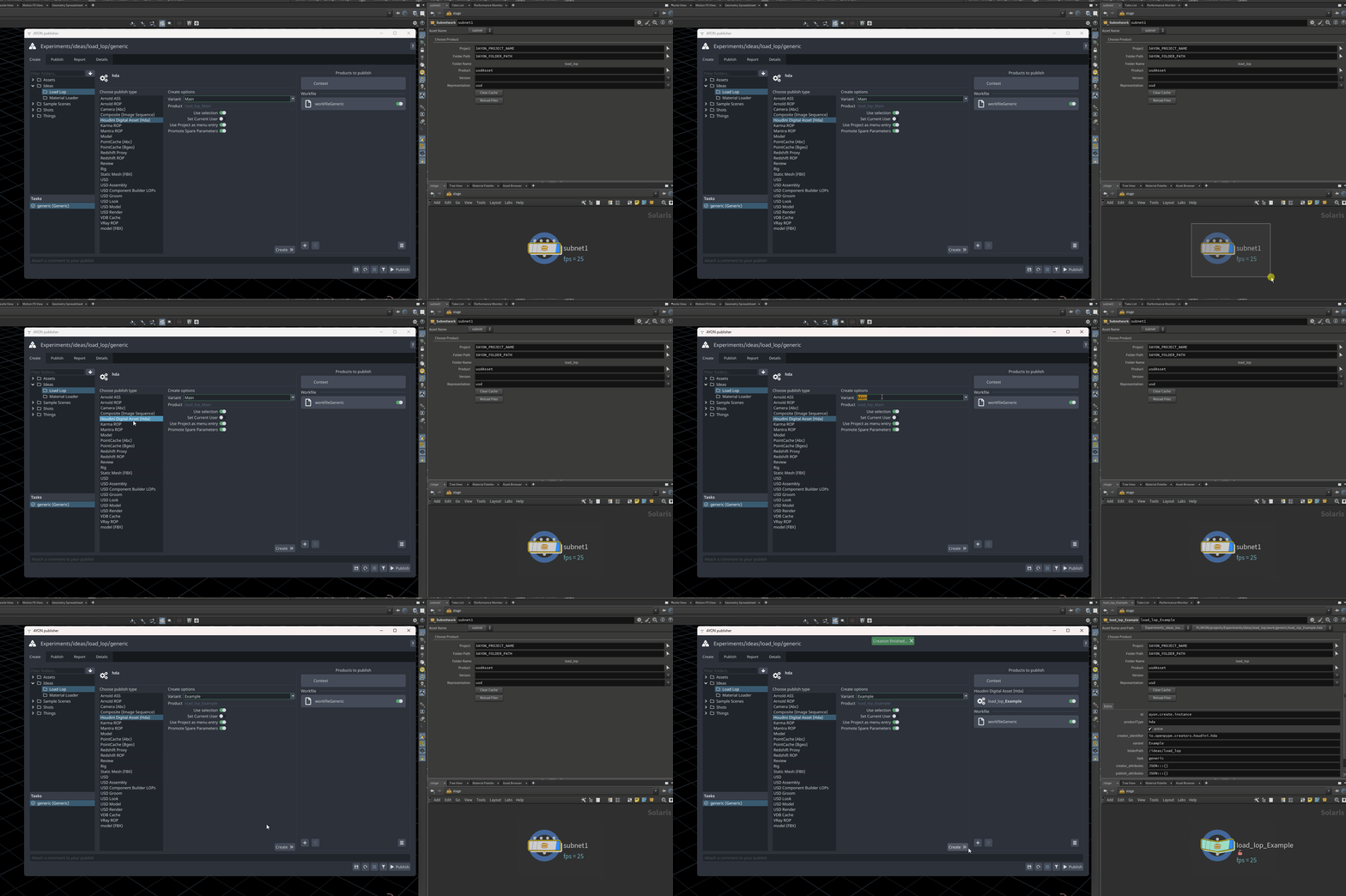
Publish: Publish your HDA to AYON.
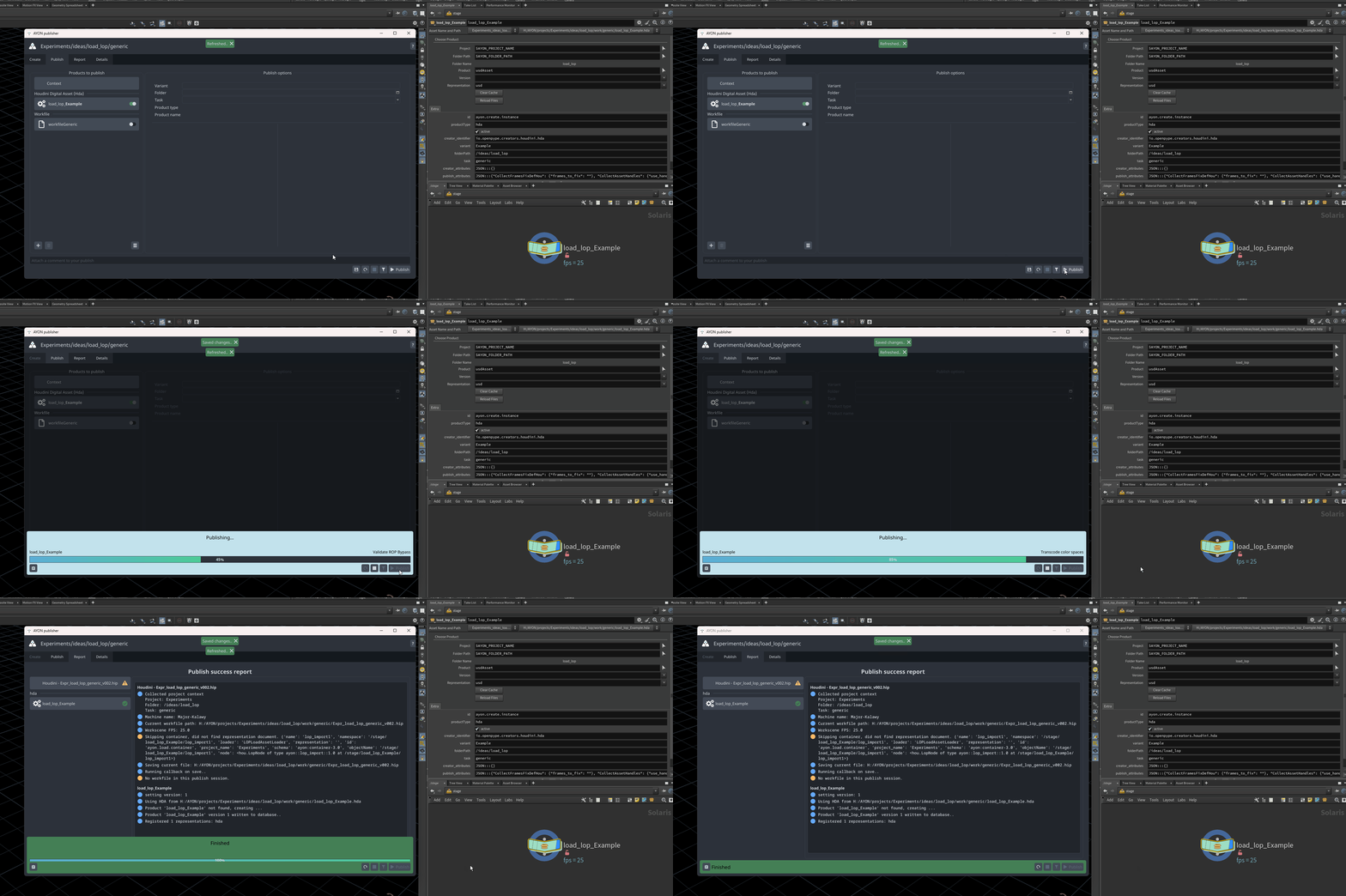
Notes:
While you can skip using the Creator / Publisher tool to create and publish the HDA, doing so makes it easier for users to access your custom HDA across the current project, and other projects if your project is a library project.
The HDA Creator in Houdini preserves the number of inputs for the subnetwork if inputs are connected.
Extend LOP Loaders Example
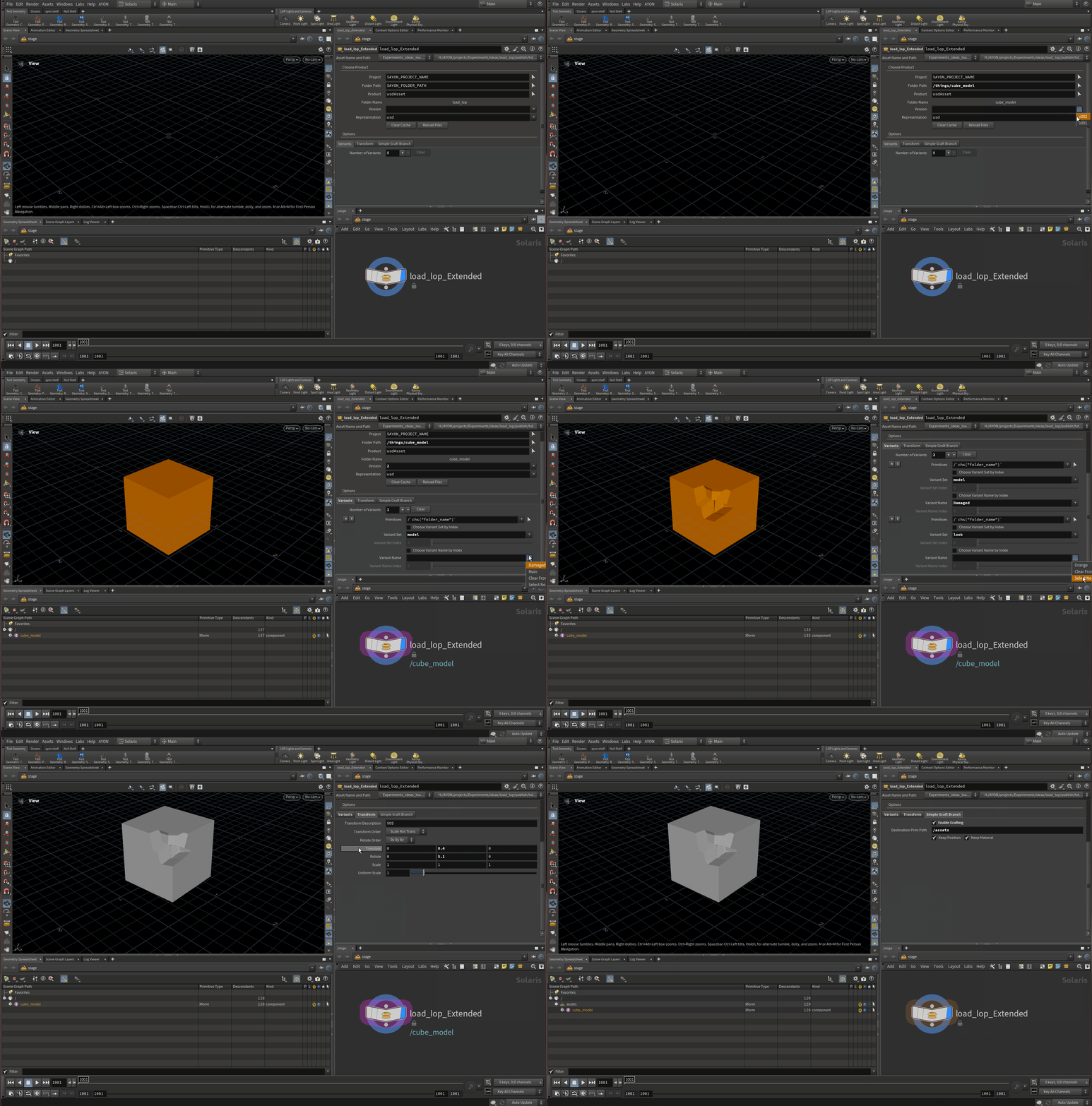
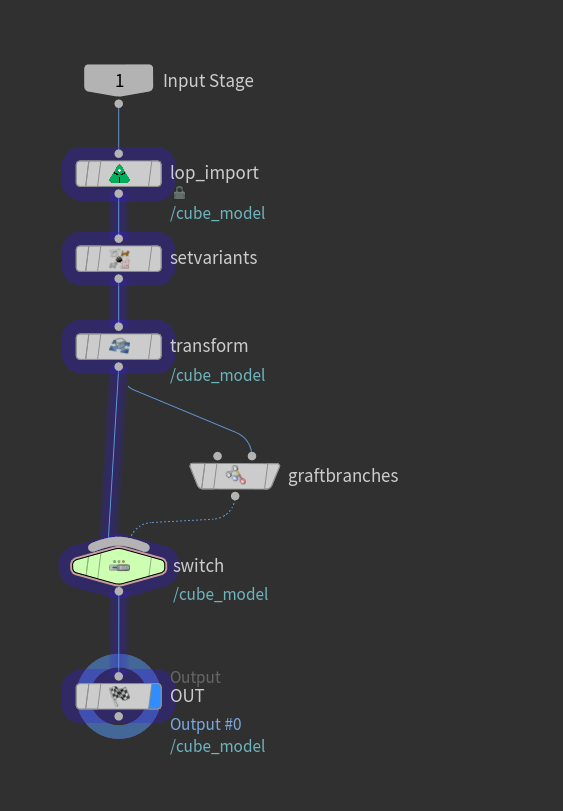
This example demonstrates how to extend a LOP import node. The custom HDA allows you to set variants, apply transformations, and perform simple grafting for repositioning the loaded asset in the scene.
Download Example
Expr_load_lop_load_lop_Extended_v004.hda
19.6 KB
Internal Nodes Used:
To promote parameters, follow the steps outlined in the previous section.
Promoting Strings with Menus in Multiparms
When promoting strings with menus within a multiparm (e.g., promoting "set variants" parameters), the menu options might not be promoted correctly. Use the following Python snippet for the menu script of that parameter:
Examplepname = kwargs['parm'].name()
# You only need to specify the name of the inner node.
vsetnode = kwargs['node'].node("setvariants")
menu = []
mitems = vsetnode.parm(pname).menuItems()
mlabels = vsetnode.parm(pname).menuLabels()
for i,item in enumerate(mitems):
menu.append(item)
menu.append(mlabels[i])
return(menu)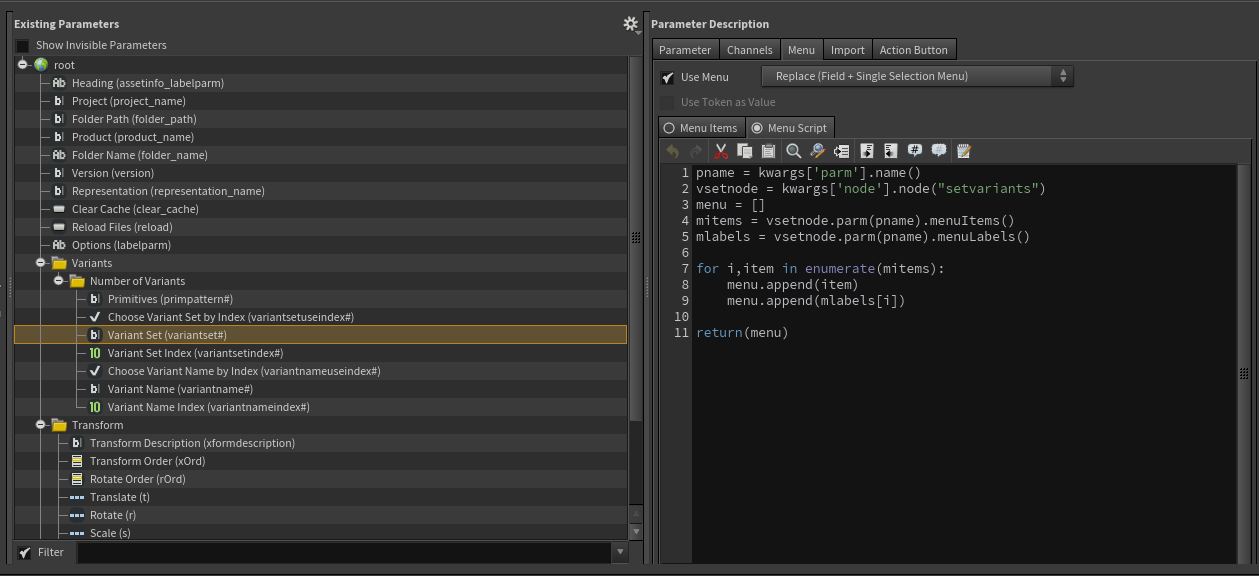
Texture Pack Loader Example
The texture pack hda example demonstrates creating a custom HDA based on the generic loader. where some parameters of the generic loader were exposed like:
project,folder pathandversion. Other parameters are specific to the custom HDA's logic.Keep in mind it’s an example for creating your custom HDAs, you can use it as it is in your pipeline or prerferably, you use it as inspiration.
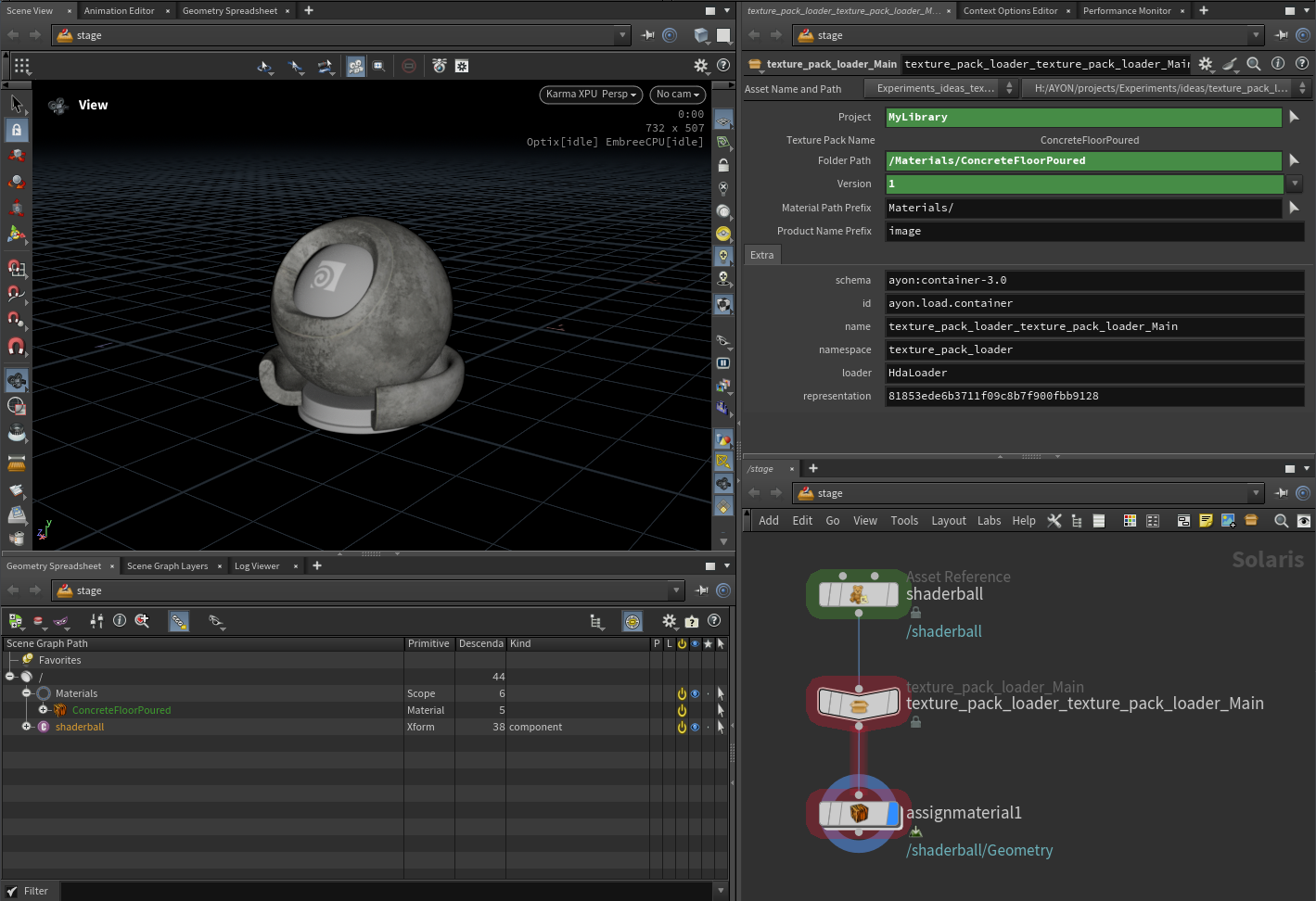
This HDA allows you to load texture bundles into your Houdini scene as a MaterialX material.
This HDA example expects published textures with unified naming conventions in your library project, such as:
Folder path: e.g.
/texturepacks/{texture_pack_name}Published Texture Naming:
{product_name_prefix}{texture_pack_name}_{map}.
Theproduct name prefixin my example, it’simage.Textures in my screenshot above were published via Working with AYON Tray Publisher with the product type
image, variant nameTexturePackName_Map, andjpgrepresentation.
The texture pack used in this example is Concrete Floor Poured | Poliigon.
Map names are hardcoded based on the inner generic loader node names.
BaseColorMetallicNormalRoughness
Download example
Expr_texture_pack_loader_texture_pack_loader_Main_v002.hda
17.6 KB