Wrap Addon Settings
Last updated Over 1 year ago
Workfile Builder
Setting Location:
ayon+settings://wrap/workfile_builder
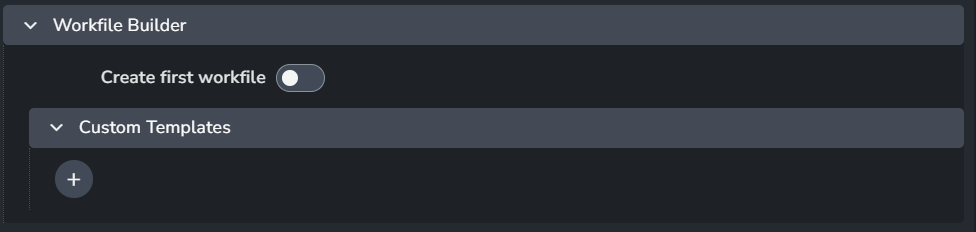
Workfile builder adds a prepared workfile for artists when no workfile exists.
It’s useful to share standards, additional helpful content in the workfile.
Currently template sharing is not handled by Site Sync so they must be accessible for all artist machines.
Create first workfile: When enabled, AYON will save the built workfile if there are no workfiles exist in the work directory.
Custom Templates: When clicking the + button, you’ll add a template.
each template consists ofThe first mathcing profile will be used, for defining multiple templates for users to select from please refer to Multiple templates per task
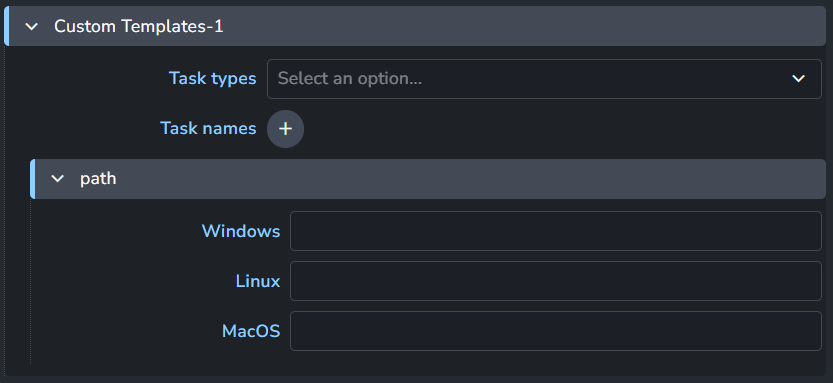
Task types
Task names
Template Path (per OS)
Multiple templates per task
Setting Location:
ayon+settings://wrap/multiple_templates_per_tasks

This allows defining multiple templates for users to select from when launching wrap.
Profiles: When clicking the + button, you’ll add a profile.
each profile consists of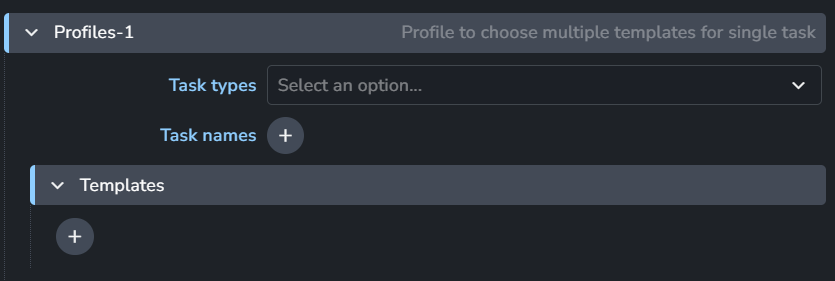
Task types
Task names
Templates: When clicking the + button, you’ll add a template.
each template consists of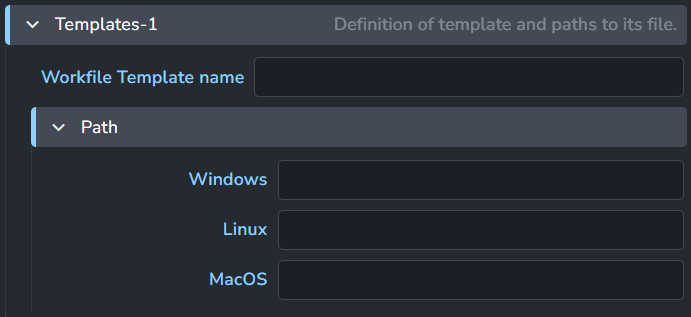
Workfile Template name: This will be shown when artists open the dialog and AYON will use it to name the workfile.
This setting is refered to as{template_name}in the project anatomy settings.Template Path (per OS)
IMPORTANT
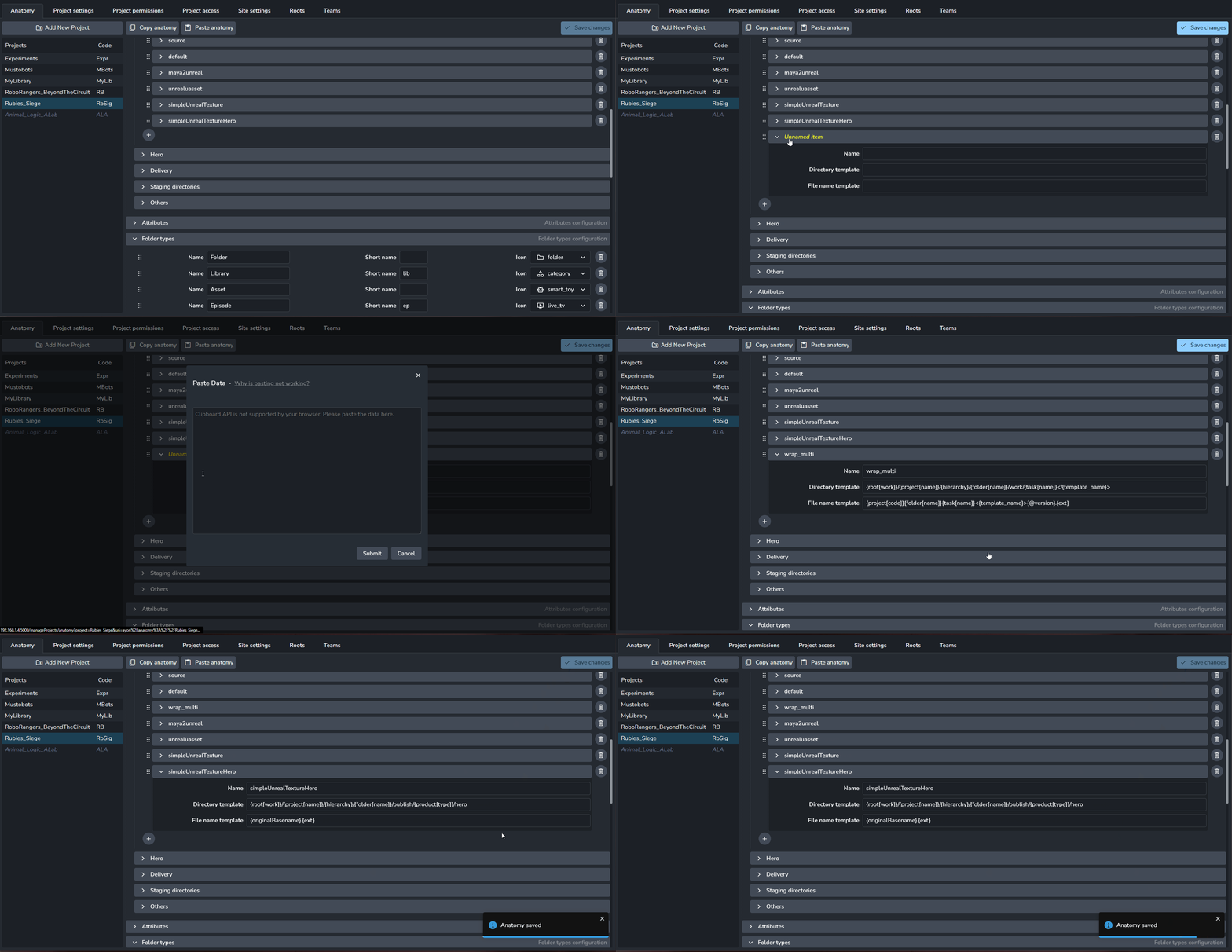
For this setting to work, you’d need an additional anatomy template.
The added </{template_name}> key is important to separate workfiles for particular template into subfolders.

you can copy the following snippet and paste it to an empty anatomy template to fill it.
{
    "name": "wrap_multi",
    "directory": "{root[work]}/{project[name]}/{hierarchy}/{folder[name]}/work/{task[name]}</{template_name}>",
    "file": "{project[code]}{folder[name]}{task[name]}<{template_name}>{@version}.{ext}"
}